Student Profile
The student profile provides basic student information such as NUID number, email address, degree programs, catalog year, GPA, student tags, advisors, interests, active enrolled courses and Stellic engagement.
Reports that you have created will be housed in the Advisor Home and the Students Tab. To identify a student use the many available search filters to locate a individual student or student groups.
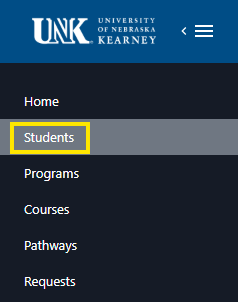
Quick links to topics found on this page:
Student Demographics
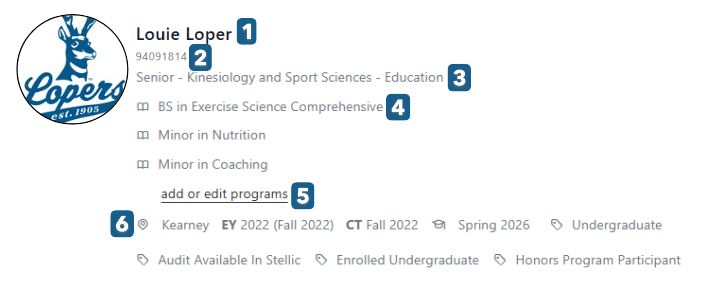
- Preferred name
- NUID & Email address
- Class standing, Program, and department housing primary program
- Degree, major and minors
- An option to add or edit programs. This will bring you to the student's plan. Official program changes are done in MyBlue.
- Campus, entry year, catalog year, Student tags.
Current Student Information
The following section of the student profile provides additional student details.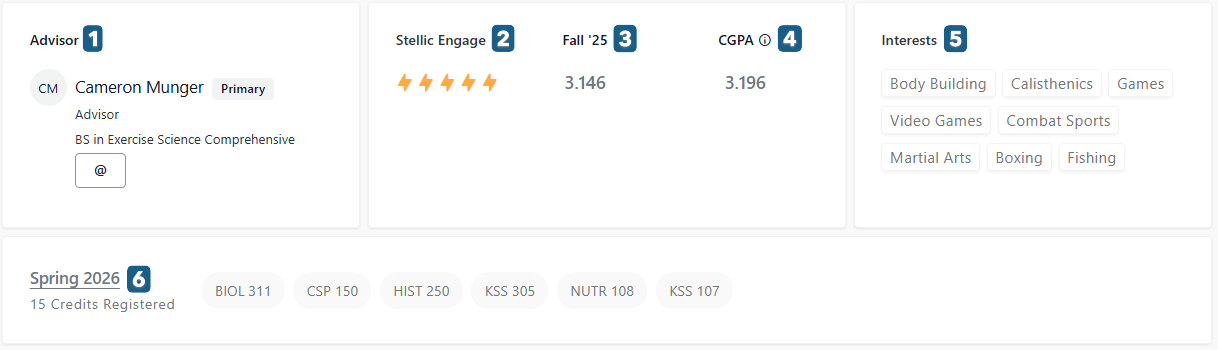
- Advisor/s assigned to the student
- Stellic Engage. Measures the amount the student has interacted with Stellic. The Stellic engagement scale is calculated using actions students have taken on their plan. Actions are weighted, so activities like messaging an advisor will give a higher boost than adding a course to a future semester. Student's do not see their engagement ranking.
- Prior semester's GPA
- Cumulative GPA
- Interest, these terms are provided by the student if they choose.
- Current semester course enrollment.
Tip: Courses that are planned but not yet registered with the institution will show a red asterisk. Click on the enrolled course for details, such as meeting times, instructors, section, course description and more.
Profile Navigation
In this section of the student profile, there are options to access other Stellic tools used to manage student information.

- Progress, is the default when loading a student's profile. The Progress tab leads to the student's audit.
- The Plan tab will take you to the Student Planner.
- Courses tab, provides a student course summary on completed, in progress, registered and transfer coursework.
- Notes, access the notes tool to review or create advising documentation.
- Requests, view current and prior requests for exceptions and substitutions.
- Audit type, Official view includes all prior, current & future term enrolled audit information. Planned includes future coursework by semester.
- Audit view, select how you would like to view the student's audit. Tip: remaining will just display courses and requirements that have not been yet satisfied.
Profile Actions
Found on the top right corner of the student profile are the action buttons. Click on the printer icon to print or download an audit report, or the envelope icon to message the student, or the clock to see Change History.
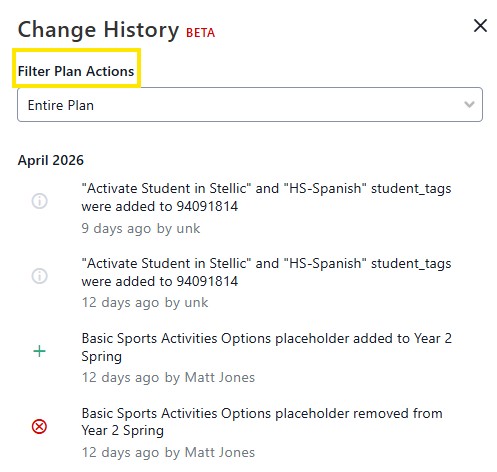
Change History
To view the history of changes to an audit such as exceptions, program and plan changes click the clock icon. Here the history of actions made by other advisors, registrar staff & data updates, also changes made to the student plan by the student is displayed. By using the drop-down menu at the top as well as who made the changes and when.