

Quick links to topics on this page:
To create a note for a student, navigate to the student's profile and click on the Notes tab. The notes tab will provide a record of all prior notes posted to the student's profile. Notes will include anything advisors, instructors, University staff or automated notes added for specific actions, such as exceptions, appointments, concerns and many more.
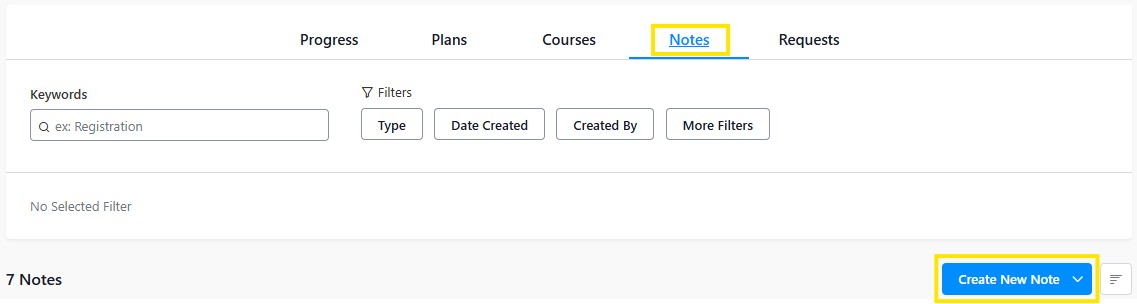
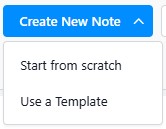
To create a new note, click on the "Create New Note" button, a dropdown menu will appear giving you the option to Start from scratch or Use a template. Starting from Scratch will create a general note.
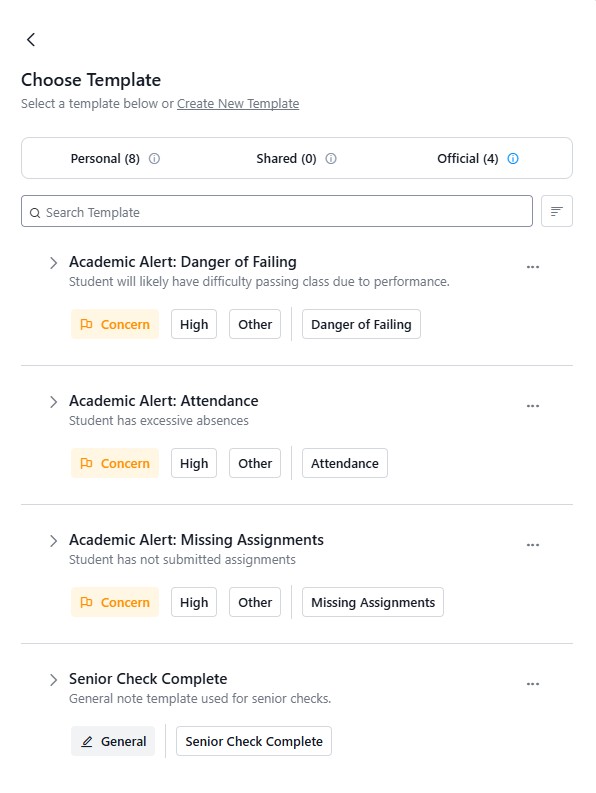
Note Templates are a method to standardize the note-taking processes. As an advisor or admin user, you can create Note Templates for your own personal use, these can be useful for many purposes, such as implementing a post advising notes template, or departmental communications. Below are example of official templates. To create your own template click on the Create New Template link.
In cases where several notes are present, you can filter notes based on the type, date created, created by, and more filters, which include items such as note tags, courses, attached file. View more in depth information about Note filters.
Tip: You can notify a user that a note has been added by tagging the user within the note. To tag a user, simply type the @ symbol within the note, and then search for the person's name or username. Important note: You are only able to @ mention a user who already has permission to view this student's record. If you just type the name of a user without the @ symbol, the user will not be tagged and notified of the note.
There are multiple types of notes to choose from. Each type has slightly different functionality, visibility, and notifications.
Visibility and notifications for students: If a note's visibility is set to student, the student is notified without needing to be tagged with an @ mention. If the note was initially made without being visible to the student and then later edited to update the visibility to include the student, the student will not receive a notification unless they are tagged with an @ mention. Some notes are made that exclude student visibility, this is often notes created by University Registrar staff or advising staff as a point of reference and record keeping.
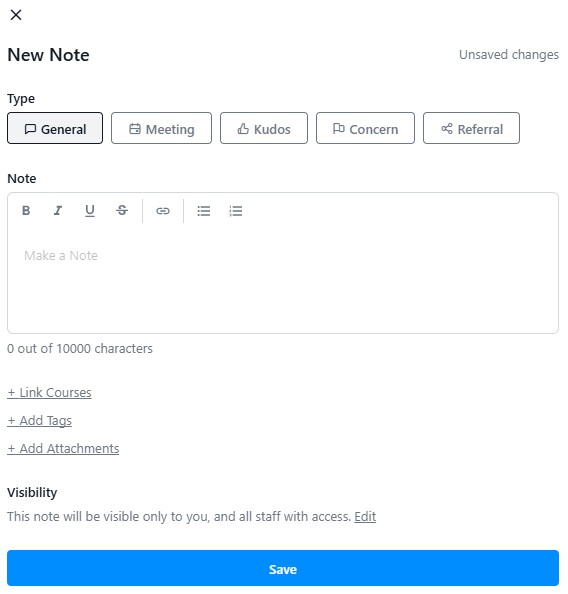
A general note is meant for basic note taking, the default visibility includes all staff, with the option to include the student. When a general note is posted, there is no notification unless someone is tagged or the visibility is specifically set to them.General notes are the default note type when the "start from scratch" option is selected. In the general note, you can use rich text, as well as link specific courses referenced in the text, add note tags, as well as attachments and visibility options.
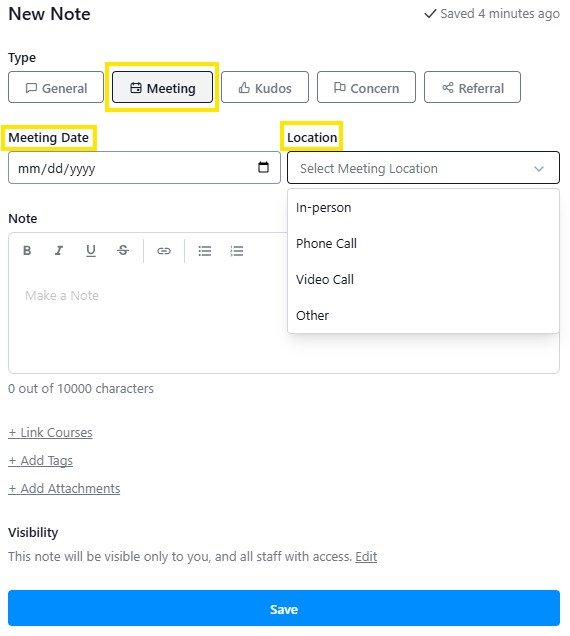
This note type is meant for meeting minutes, it has the same functionality as the general note type, but with additional date and location information. The default visibility includes all staff with access, and optional student visibility. No notifications are sent unless someone is tagged or is specifically set to them.
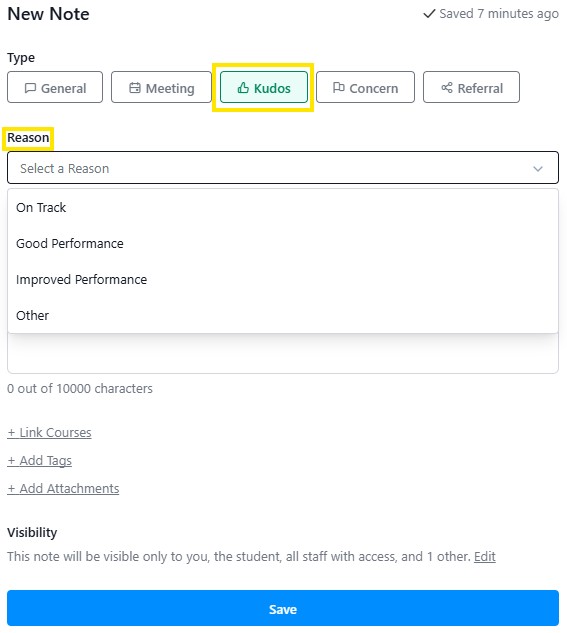
This note type is intended to provided positive congratulatory news or message of encouragement to the student. The default visibility included all staff with access as well as the student. Only the student will receive a notification.
Use for this note type is to alert other users such as the student's advisor, instructors, department chairs and others to an issue with a student. The default visibility is all staff and no option for student to view. Only the concern's assignee will receive a notification. If the assignee is set to a group, all members in that group will receive a notification. 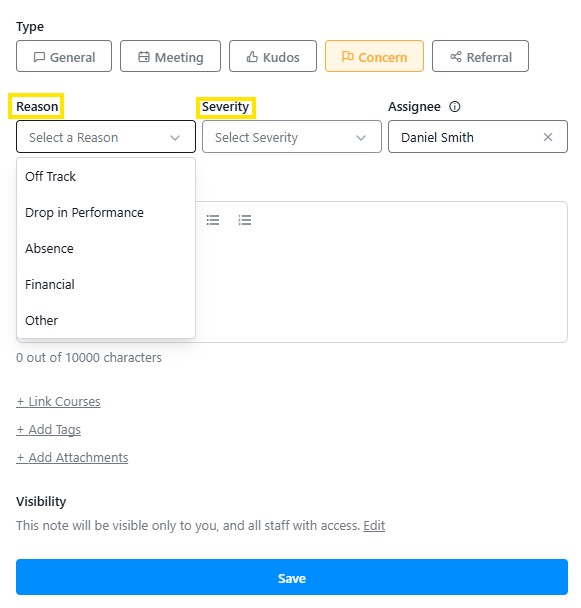
Sharing a concern also comes with an additional functionality. All notes that are created as concerns are able to be marked as resolved. Concerns can only be resolved by the user that created them or the person/group it is assigned to.
You can search for concerns by their status - there is a filter for "Active Concerns", meaning concerns that have not been resolved, or "Resolved Concerns". You can find this filter in the Student Search page under the "Notes" filter.
The function of this note type is to refer a student concern to another person, office or campus resource and you would like the referred party to be aware of this. Visibility includes all staff with stellic access. All users tagged in the referral receive a notification. You can choose to tag a user group. If you are a user who has been the recipient of a referral, you can use the comment feature to continue the conversation started by the person who made the referral.
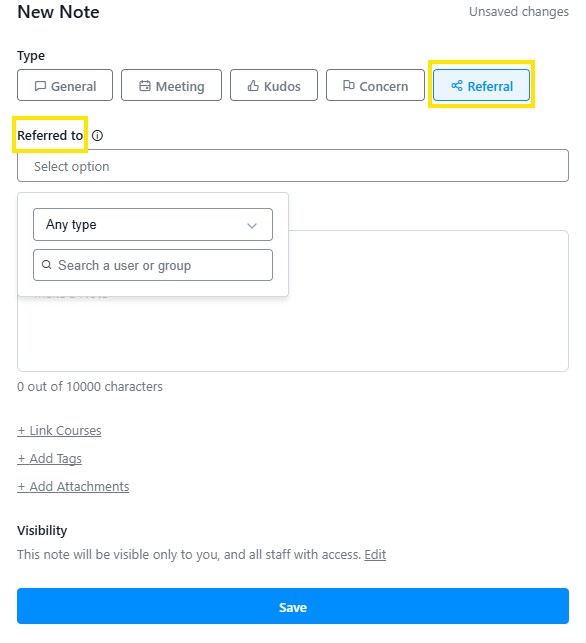
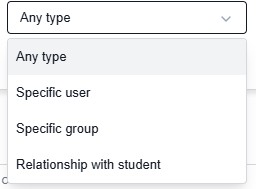
To view options of available contact within each search option, Specific user, Specific group, or Relationship with student, click on the magnifying glass option and a drop down of contacts and groups will appear.
To review the directions on how to submit an Academic Alert please visit Academic Advising.
Stellic supports adding attachments to notes. To add an attached file, click on the "add attachment" options below the note taking text box. Up to 5 files can be attached per note. The file size must be 5MB or smaller. PDF, JPG, DOC, DOCX, XLS, XLSX, and PNG file types are supported.
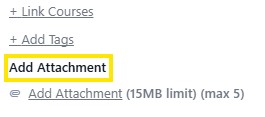
You’ll also be able to select the view options for the note. You can keep the note private to yourself to use this as a personal reminder, or have it be accessible to other advisors, or a user group. Some note options also give you the option to let the student view the note as well.
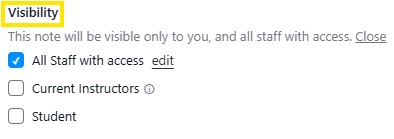 Click the "edit" option next to your saved note to change the visibility of the note after it’s been saved. Note that you’ll only be able to edit notes that you’ve created. You’ll also be able to delete notes that you’ve created by clicking the ‘x’ that appears when you hover over the note.
Important: the user you are tagging must have rights to view the note based on the visibility you have assigned to that particular note. If they are not part of the students advisors or the user group assigned, they will not be able to view the note. Administrative users will not receive alerts on a note unless they are specifically mentioned in the note, using the '@username' to send the alert.
On the Student Search page, you can search for Notes on students under the "Notes" filter. You can search by note type, or by the date range that the note was last added. You are only able to search for notes on students that you have permission to see in Stellic.
Notes can have comments added to them in order to have more robust conversations about particular notes. You can also tag additional users in the comments so that they can be notified and added to the conversation. No user will receive a notification about a comment unless they have been tagged with an @ mention.