
Advisors can add notes to a student’s profile. Note are the means to log advising meeting minutes, make referrals, share concerns, provide kudos, or simply add general notes or reminders.
Tip: To identify advisees with notes, use the Advisor filter in combination with the Notes filter.
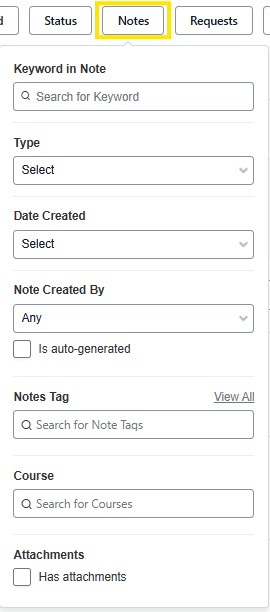
The Notes filter contains the following search criteria:
Keyword in Note: Searching key word phrases will identify students with those words used in prior notes.
Type: There are 5 note types. This is to standardize the content and subject of the note, as well as make it searchable. General & Meeting are often used in summarizing advising sessions. Kudos to give positive recognition. referral and Concern are used by advisors to notify student support services. 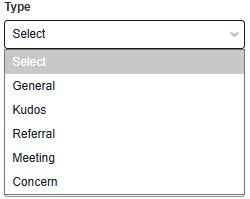
Date Created: When searching notes by date created, there are several options to base a search on.![Date Created dropdown menu with options for last 3 days, last 7 days, last 30 days, last [blank] period, and custom date range.](../stellic-resource-and-training-images/note-filters-2.jpg)
Note Created by: Students with notes can be identified by who created the note. The options include Any, others and Specific User or Group.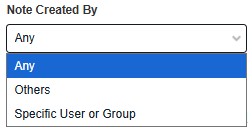
To search who created the note, type in the name under the specific user or group.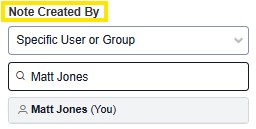
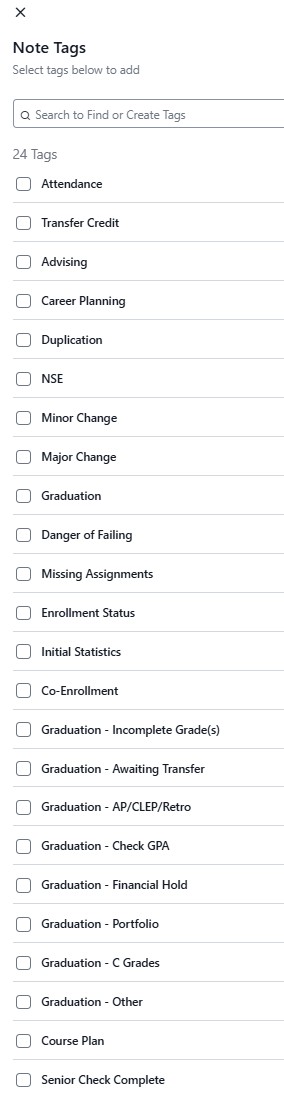
Note Tag: To make the content and subject of a note searchable, a note must be "Tagged" or given a designation by term, of the subject & content in a created note. There are currently 24 available Note Tags.
Course: Courses can be tagged in a note. This allows advisors to search by course name and number to view any notes created that are related to a specific course. It is common for a specific course to be tagged in a concern type note. Example:
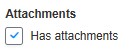
Attachments: Stellic supports adding attachments in notes. By Selecting Has attachments, you can view students with notes that contain attached files.
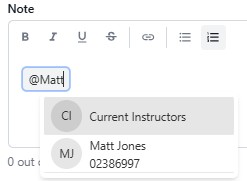
Tip: People can be tagged in notes as well. To tag a person you must use the @ icon and type in the person you wish to tag. When someone, is tagged they will receive a notification via Stellic. This notification can come by email or when logged into Stellic.