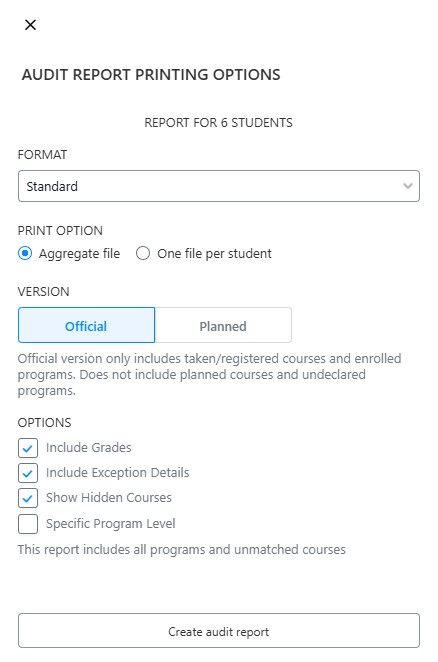

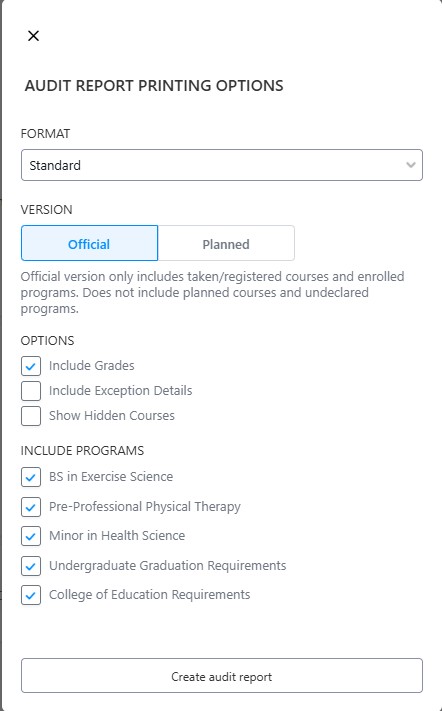
On the upper right corner of the student's profile is an option to print the student's audit. Click on the printer icon,  This will generate a PDF audit report for each student in your search. You can choose from the ‘Official’ Audit (which only shows classes already taken or registered) or the ‘Planned’ Audit (which shows classes planned out within Stellic, and courses already taken or registered). You can also choose whether or not to include grades and exception details.
You have two audit layouts to choose from, 'Standard' and 'Compact'. The 'Standard' report shows the information in a similar layout to the on-screen audit. The compact report will give you an easy to scan table version of the audit.
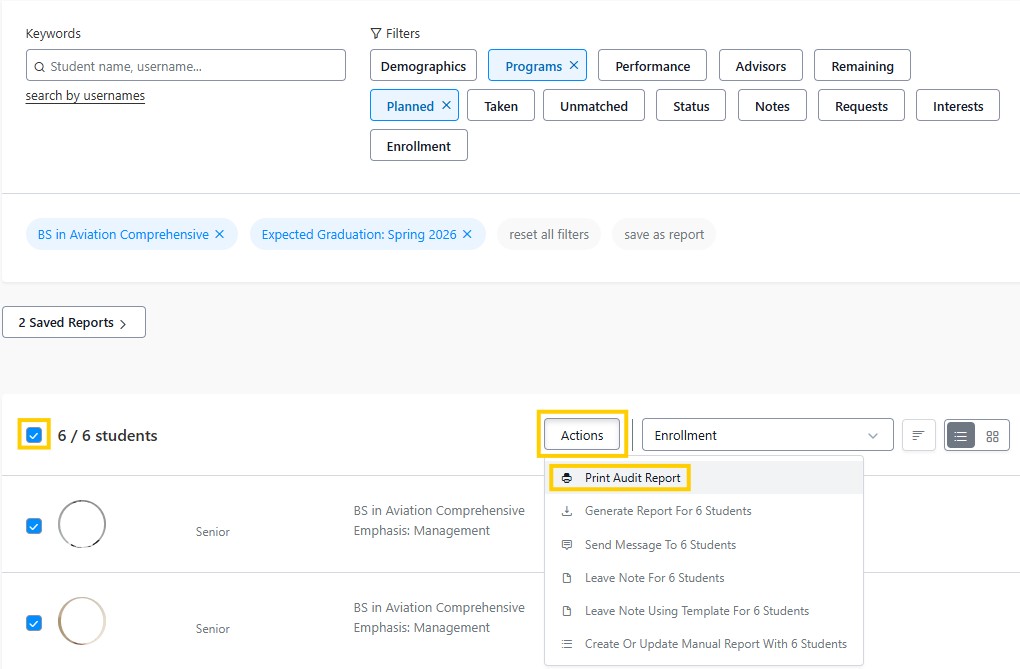
After completing a student search to identify a group of students, for example BS in Aviation Comprehensive with an expected graduation of Spring 2026.
Click on the check box, or select the individual boxes next to each student. Then click on the Action button, and select Print Audit Report.
Next, depending on what you would like to include in the printed audits, there are several options. The Remaining Requirements option will produce a CSV (spreadsheet) download of each student included in the student search and their remaining requirements and not a pdf download of the audits.