Messaging in Stellic
There are two methods to message students from within the Stellic: a direct message to an individual student or a bulk message to multiple students.
Individual Messaging
To send a message to an individual student, search for or click on the student you would like to message. Once on the student's profile, click on the envelope icon in the top right corner of the student's page. Input your message into the text box, then click on the blue send button.
Message Icon: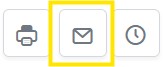 Message text box:
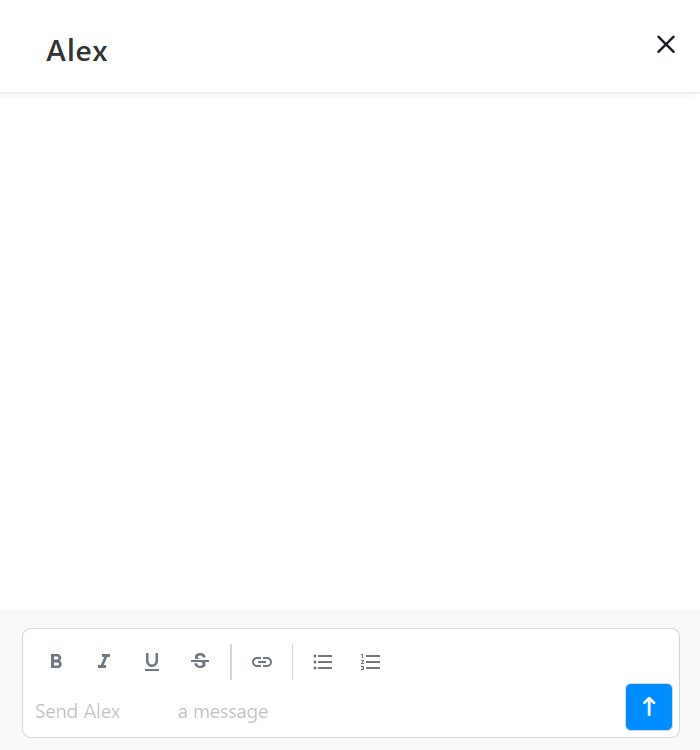
How the student receives the message depends on their notification settings within Stellic. At a minimum, they will see an in-app notification and a daily digest email. Students can click on the notification icon to access the message, or view all messages by clicking on the envelope icon in their top menu.

Bulk Messaging
To send a bulk message, use the search filters on your student search screen to narrow your population to the set of students you would like to send your message. Once you have your students selected, click on the Actions button located above the student list and then Send Message. This will send a message to every student you have selected. (Note: Bulk messages are limited to 10,000 characters).
This process is the same, if using a report as the basis of your student group to message.
The message screen that pops up will confirm the number of students to whom you are sending the message, along with the search parameters that you used.
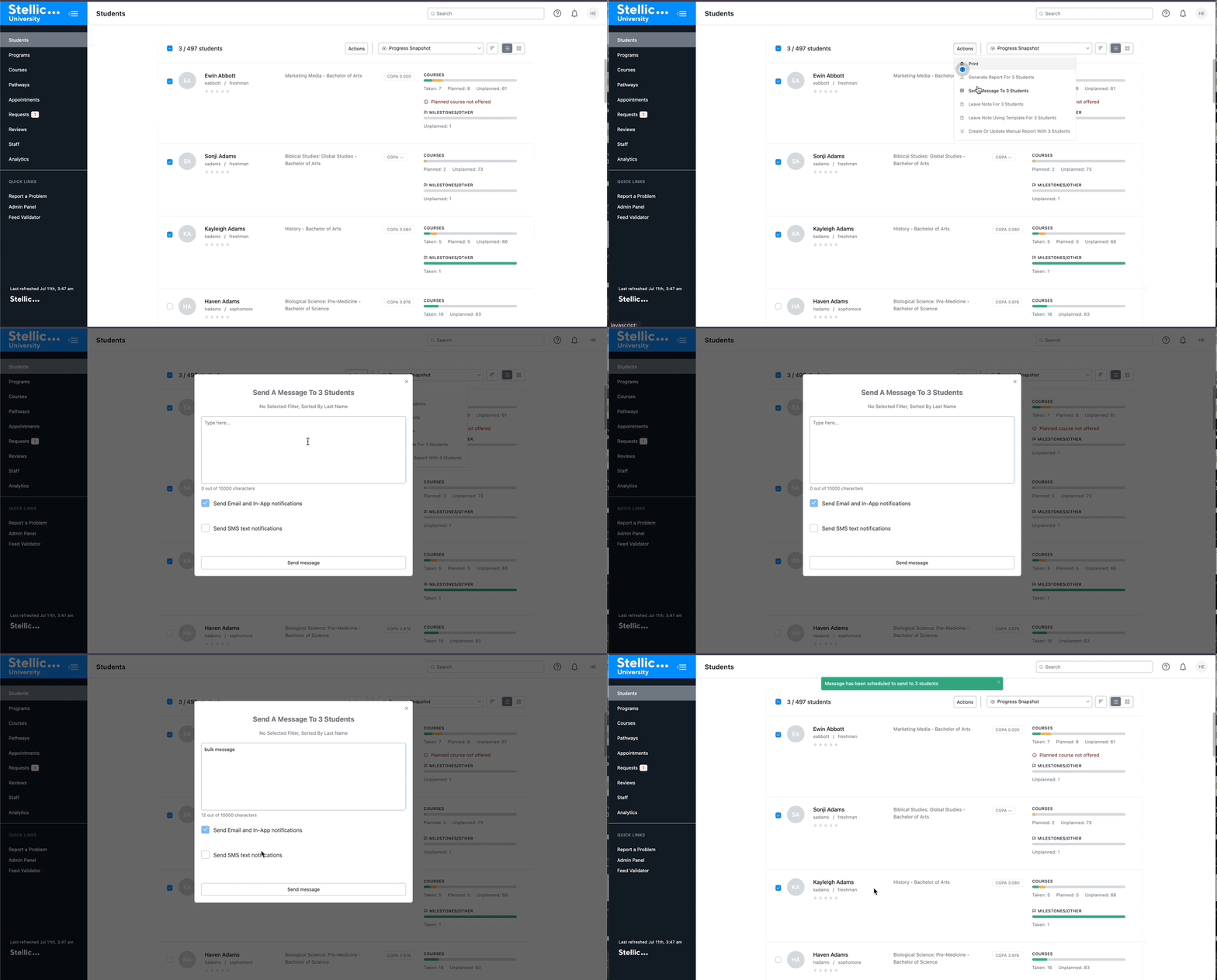
Once the message is sent, you will see a confirmation message on your screen. You can also see a confirmation within your notifications.
The message will be stored within each student's profile, and can be accessed by clicking on the envelope icon from the student's page. A record of all messages sent can be found here.