
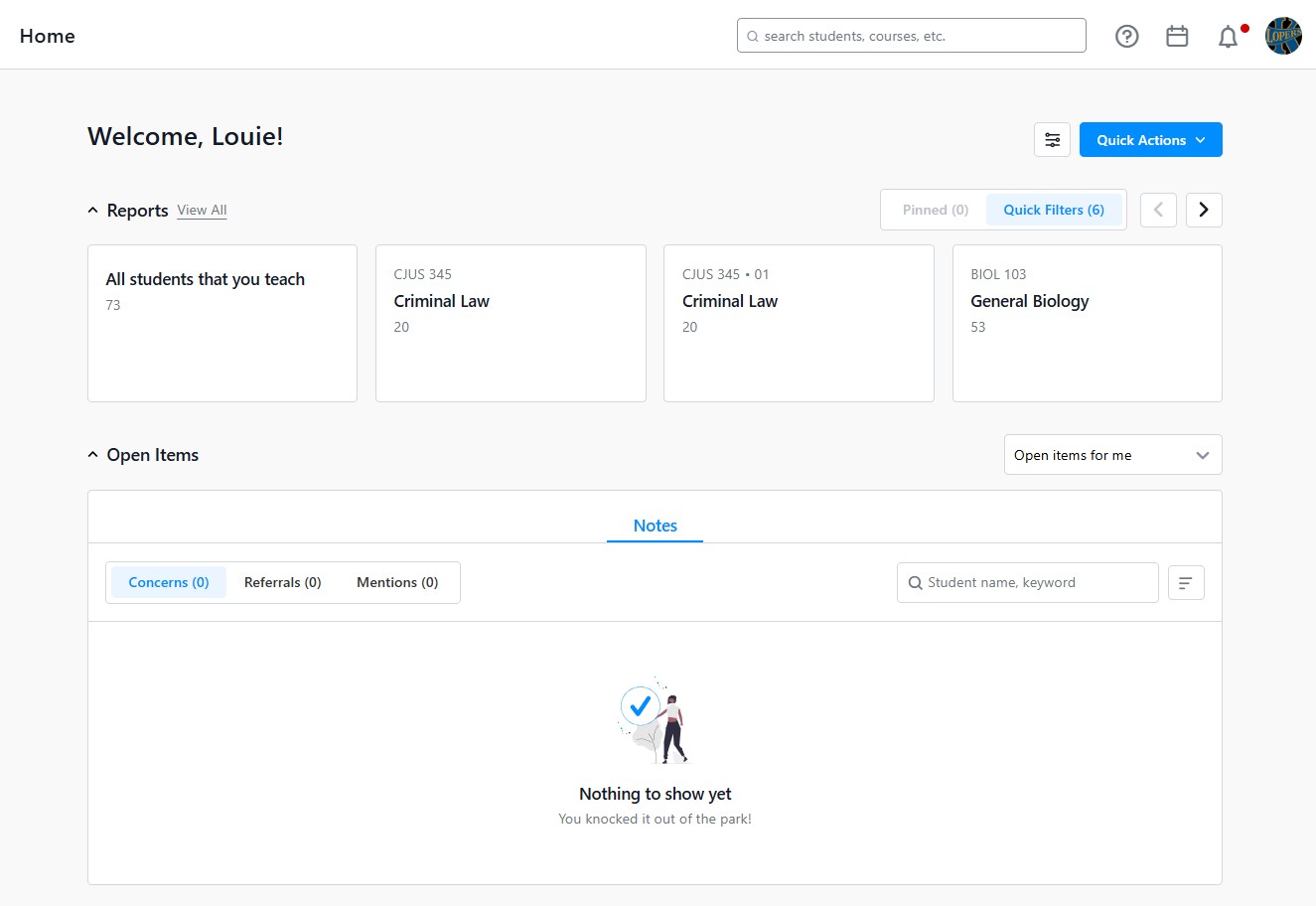
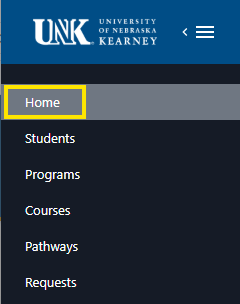
Home is your central hub for advising activities in Stellic. When logging into Stellic you will land on a personalized dashboard that brings together your most important advising tasks, student information, and frequently used tools in one place.
Quick links to page topics:
| Accessing Home | Overview of Advisor Home | Personalizing Your Dashboard |
| Best Practices | User Settings | Notification Settings |
| Stellic Inbox |
Home is designed for advisors who work directly with students. It centralizes the information and actions needed most, reducing the time spent navigating between different parts of the platform. Home streamlines your daily workflows by:
See your day at a glance, pin reports, and pending tasks as soon as you log in.
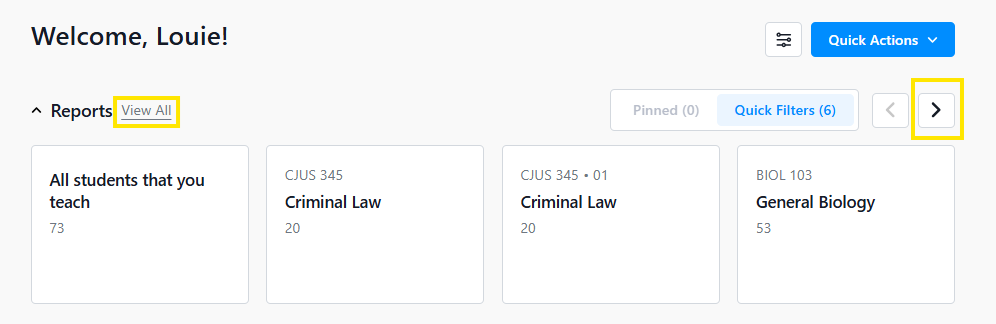
Access reports instantly. Pin your favorite saved reports to your dashboard, surfacing student counts and tracking status instantly.
Complete tasks quickly. Raise concerns, send referrals, log meetings, or give kudos directly from the Quick Actions button.
The layout is designed to help you quickly scan what matters most and take action without navigating away from your home page.
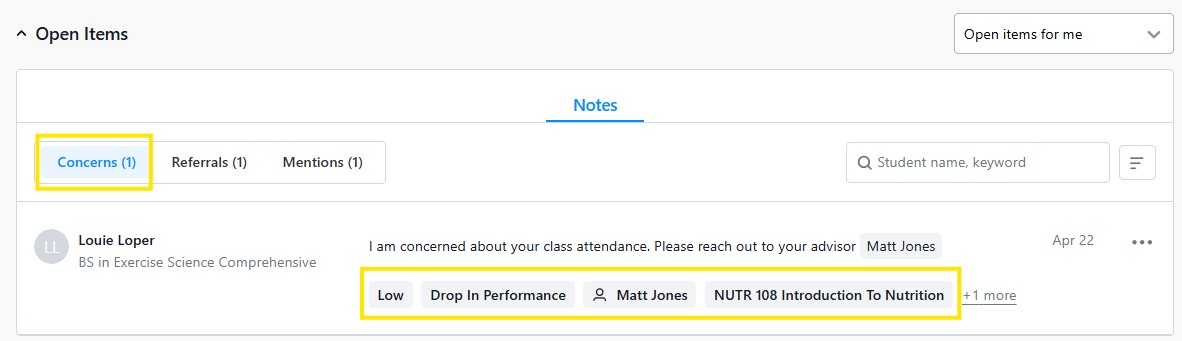
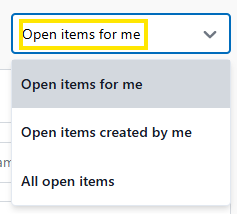
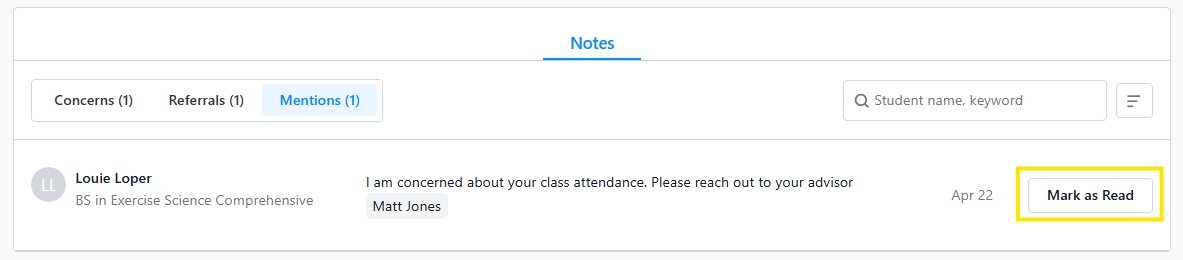

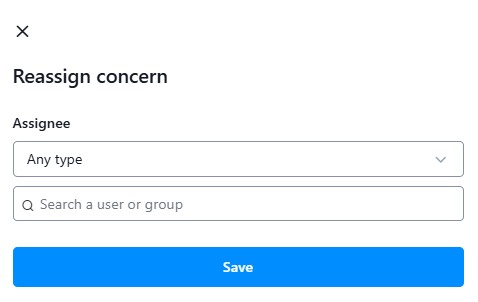
Tip: When mentioning other instructors or advisors make sure to place the @ symbol before the name is typed to properly tag someone. Without the proper tag made a instructor or advisor will not Racine a notification that they have been tagged in a note.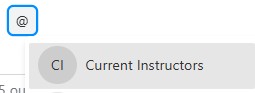
Quick Actions: The Pick Action button in the top right corner provides fast access to common tasks. These tasks allow you to create a note from the advisor home without having to navigate to an individual student profile. Learn more about making notes in Stellic.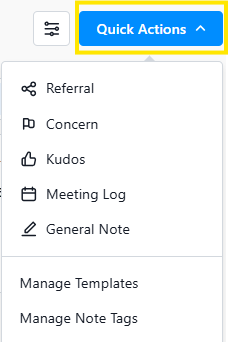
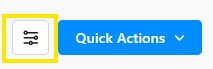
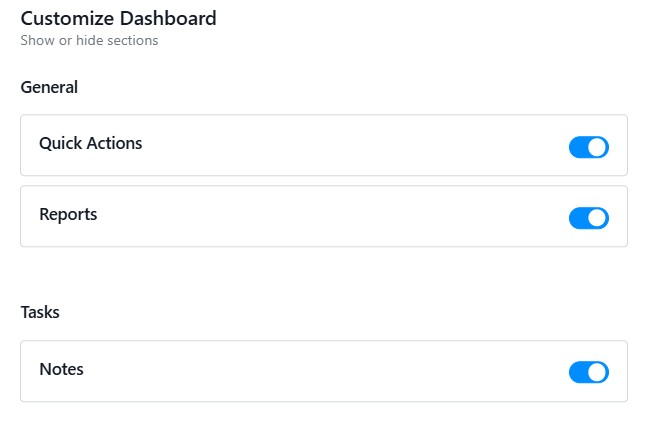
What sections displayed can be customized by using the toggle button to turn on or off the quick actions, reports, and note features. Click on the slider button, next to the Quick Action button to make changes.
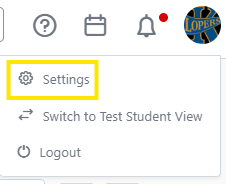
You can access and customize Stellic settings by clicking your name in the top right hand corner and then Settings.To review user settings, click the user profile icon found on the upper right hand corner of any page, and then select the Settings link.
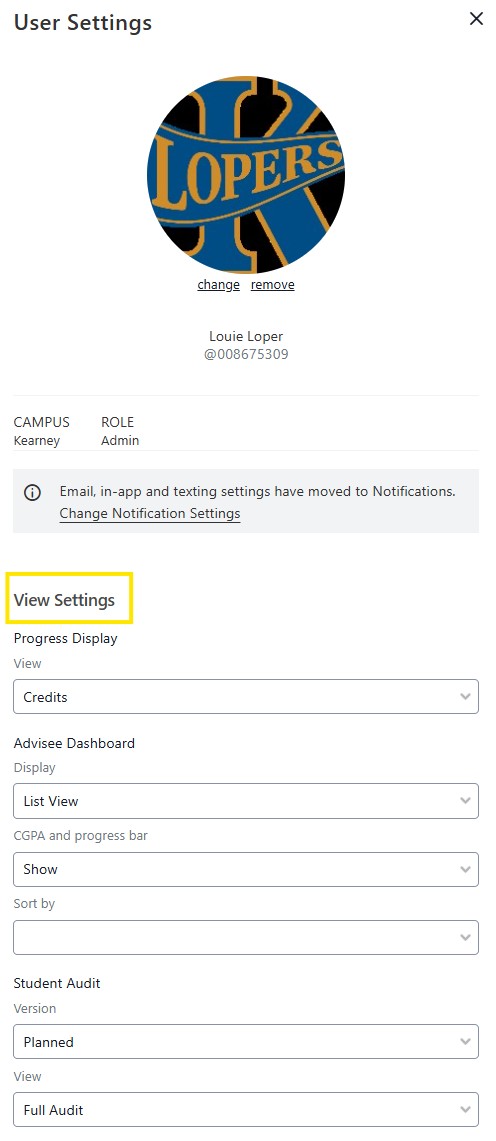
User settings will appear, here you can change your profile picture, view your campus and user role, update notification settings, viewing settings, audit and report printing options, turn on messaging and set accessibility preferences.
View Settings will control the default view for many sections of the platform. You’ll always be able to navigate between views, but this will control which view serves as a default view when you log in.
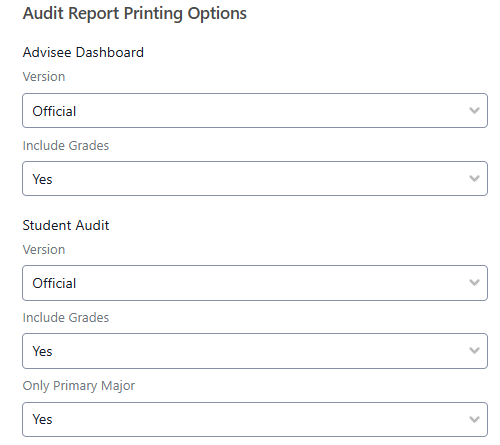
Audit Report Printing Options will control the default print view when you opt to print PDF audit reports from either your dashboard view or from an individual student's page. You’ll always be able to navigate between views, but this will control which view serves as your default.
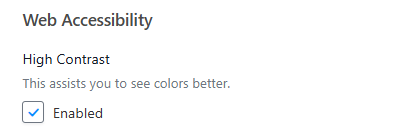
 Web Accessibility options include high contrast and text equivalents for non-text element views.
In Stellic you can manage how and when you would like to receive your notifications. Accessing the user settings, click on the Notifications tab. Here you can set your frequency for email notifications. In general stellic will notify advisors when they receive a new message from a student, requests for plan reviews, student alerts, substitutions and exception requests.

The Email address used cannot be changed, this email is set in MyBlue. You can select the instant email notification or a daily digest email summarizing notifications.
Notification type: Advisors have the option to set notification preferences for Critical Alerts, Warnings or information changes. The options are to receives In-app notifications or daily emails or both. 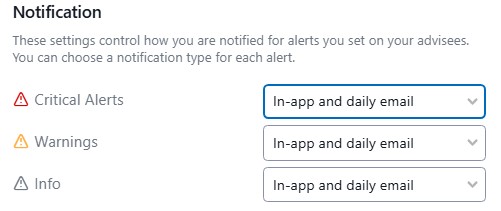
In app notifications are indicated by the Bell icon with a red dot in the top right corner of any Stellic page. 
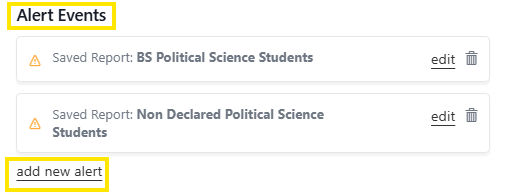
Alert Events: This is the list of items that when changed that will trigger a notification. For example any tracked reports. If a student is added or dropped from a report you will be noticed. Advisors can also create other Alert types to receive notifications by clicking on the "add new alert" link.
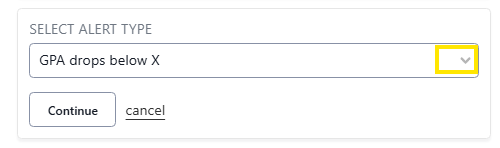
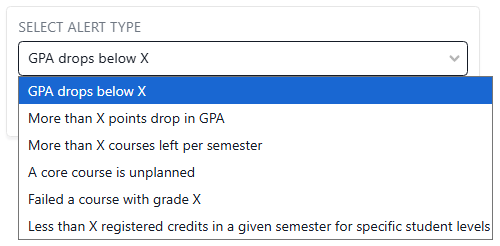
Click on the drop down menu to select the alert type and follow the next menu options to create custom alerts.
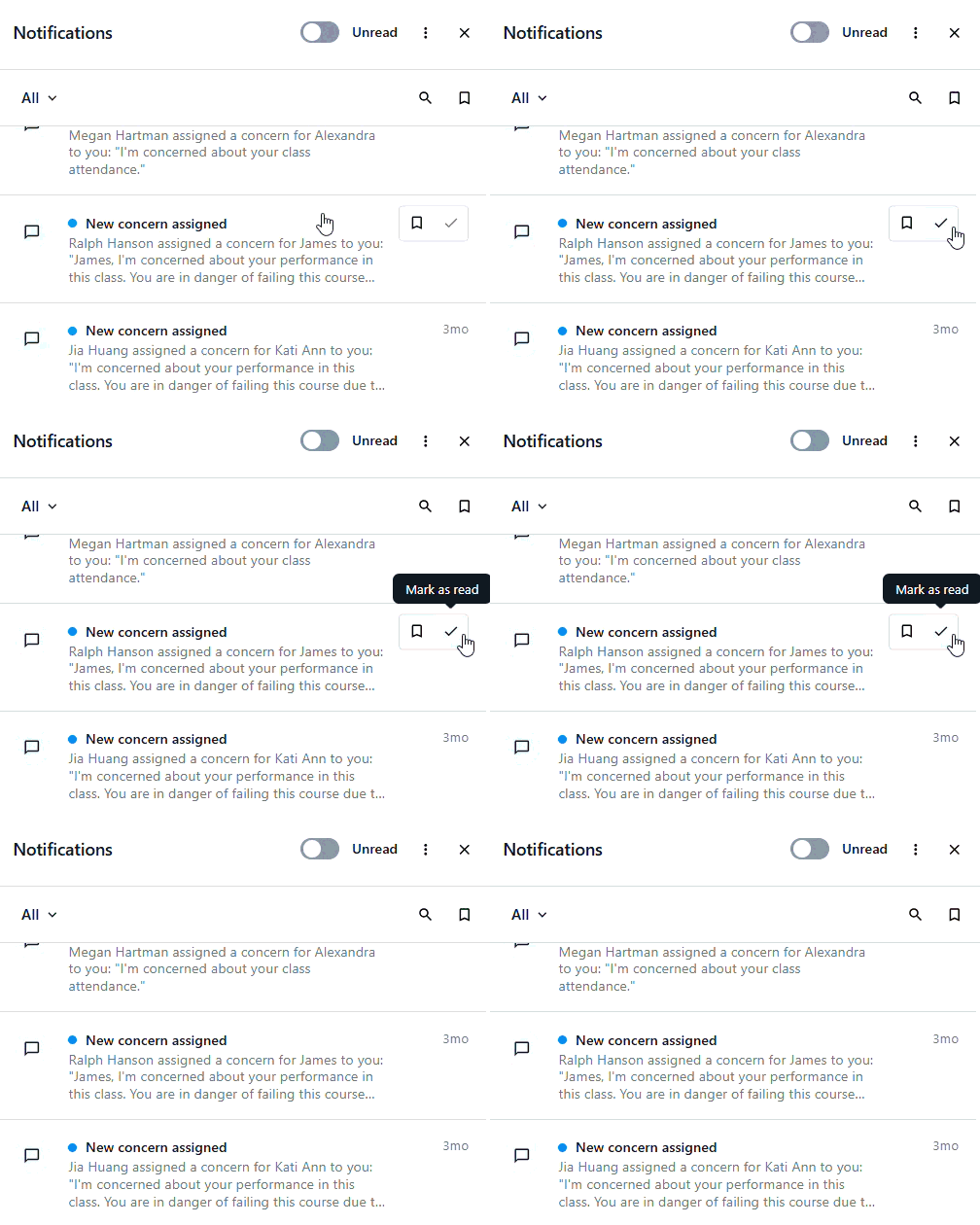
When you receive a notification it will land in your Stellic inbox. The inbox serves as a searchable feed for daily notifications that come through Stellic. You are able to filter for what's relevant, bookmark what you'll come back to, and navigate directly to the source of each notification.
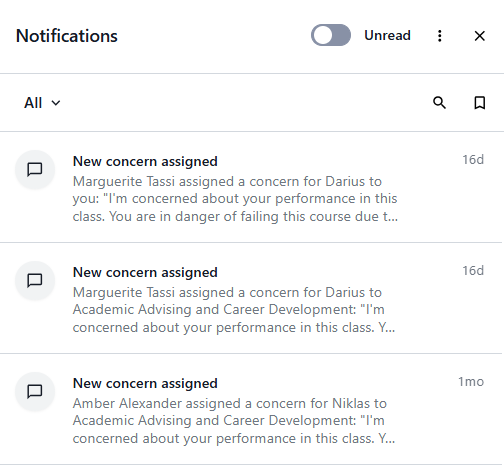
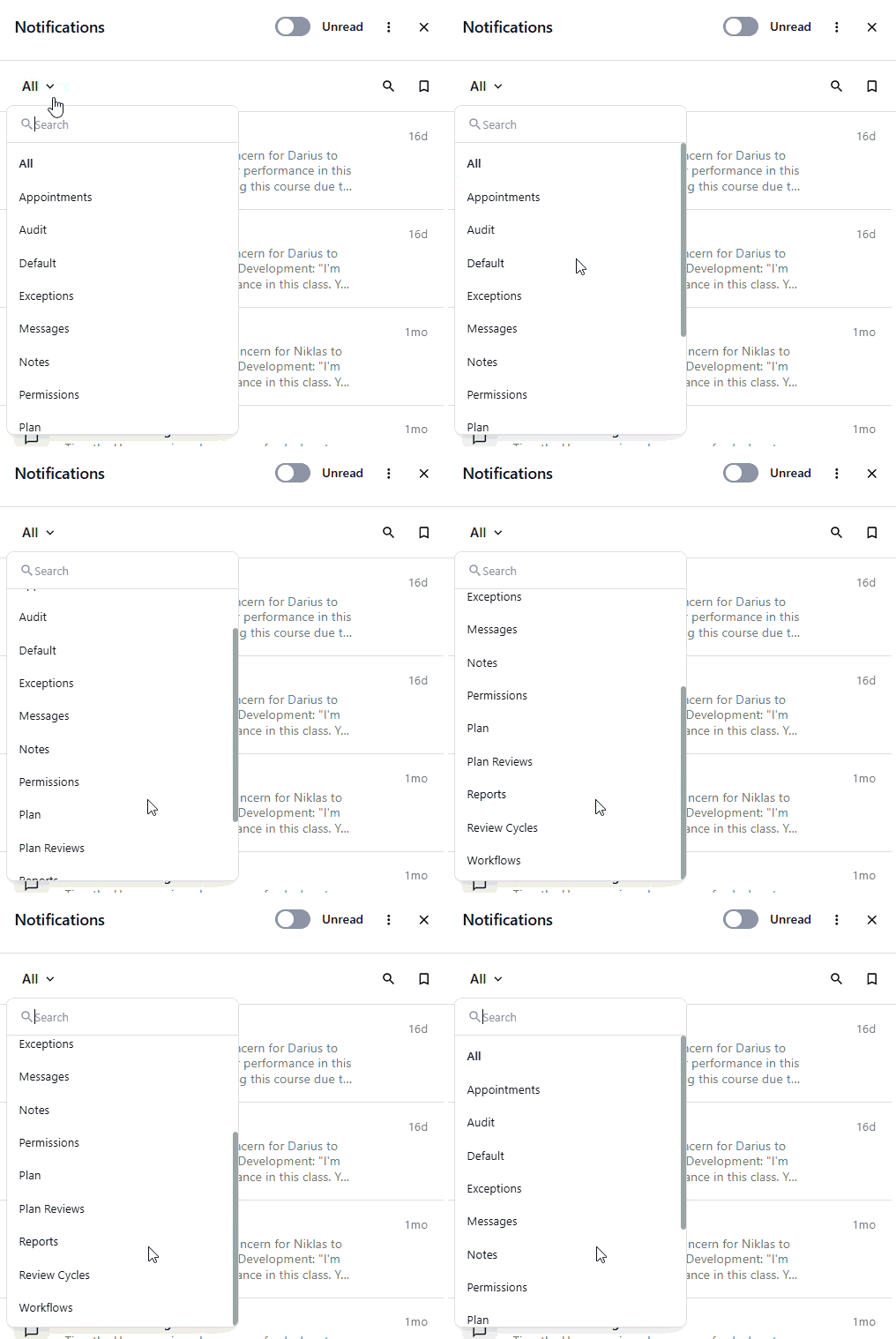
Filter by category: Notifications are now grouped into categories, including Appointments, Audit, Exceptions, Messages, Notes, Permissions, and Plan. Use the filter dropdown at the top of the inbox to narrow your view to a single category.
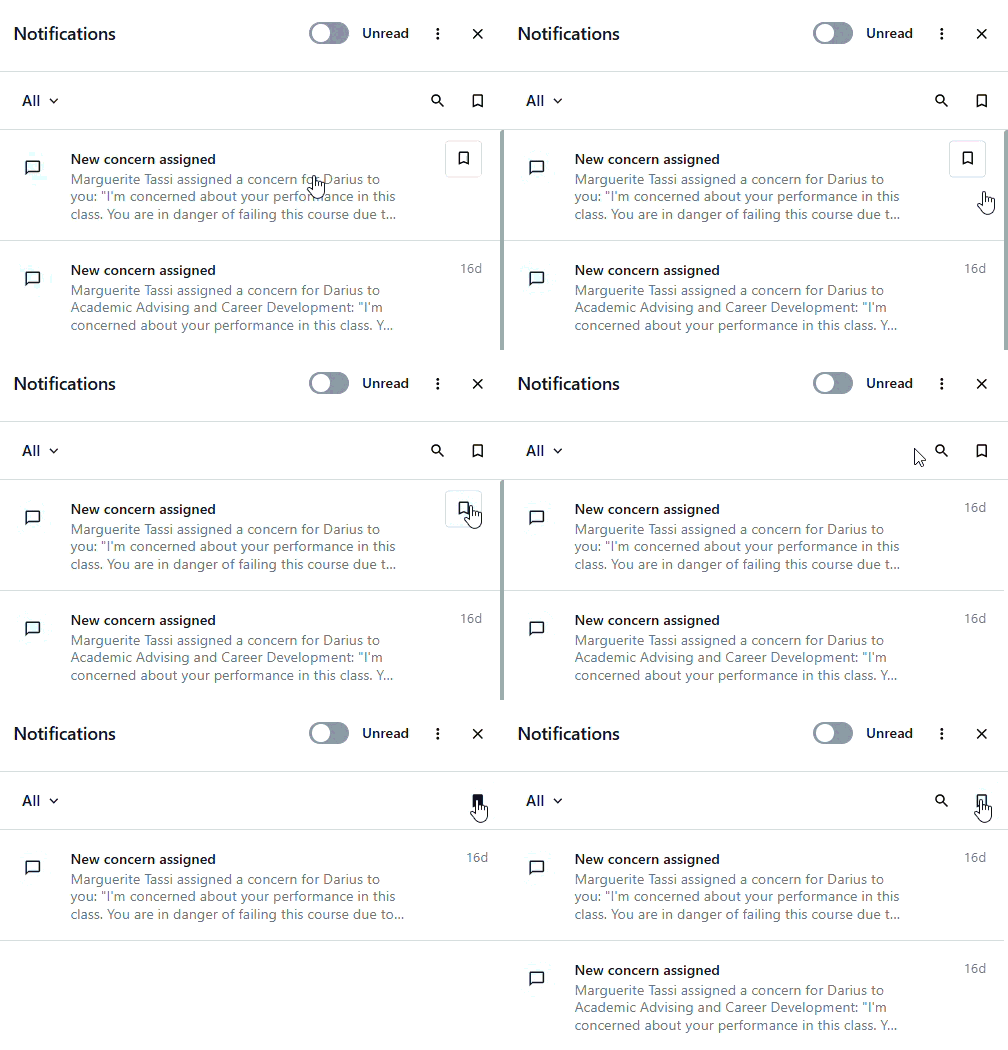
Save for Later: Bookmark any notification with a single click. Bookmarked items live in a dedicated view and can be marked as done when you've finished the underlying task.
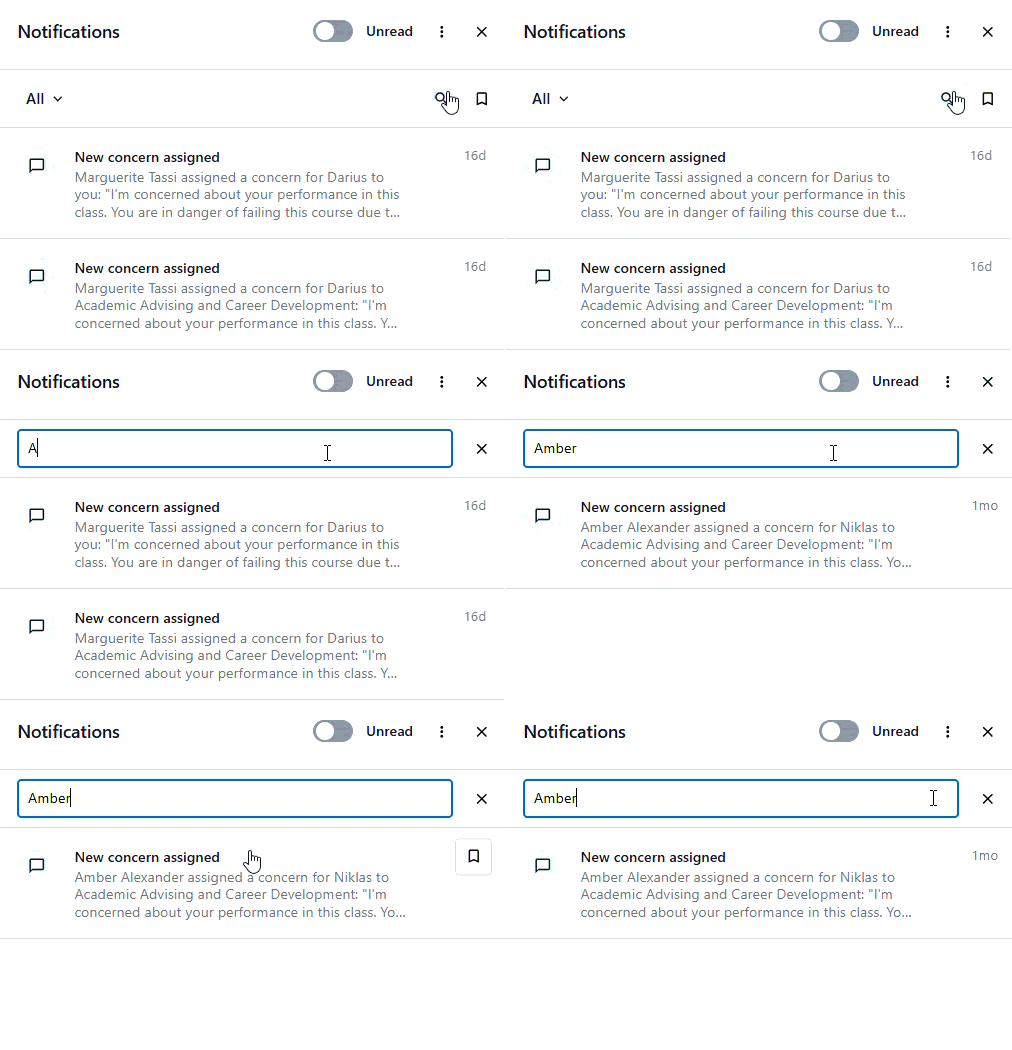
Search: Find any notification by content, sender, or keyword. Search filters in real time as you type.
Deep linking: Clicking any notification opens the relevant surface in Stellic - a student alert opens the student profile, an exception request opens the request tab in the student profile, and a saved note opens that note directly.
Mark as Read: Clicking on the three vertical dots will allow you to Mark All items as Read.
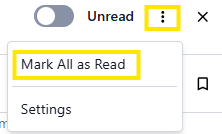
To mark off individual items hover your cursor over the timestamp and select mark as read or the bookmark to save.