
Home is your dashboard to all things Stellic. The link for Home is at the top left hand menu tab as well as you default landing page when you login.
Quick links to topics found on this page:
| Schedule | Semester Course Summary | ||
| Explore | Advisor Contacts | Home Actions | Notification Settings |
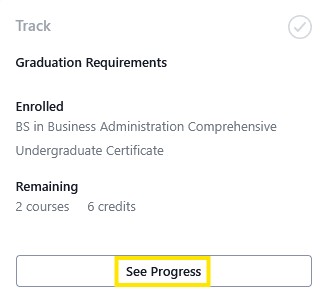
Track your course completion and remaining program requirements. This is also commonly known as the degree audit. Clicking on See Progress button will bring you to your student profile and degree audit. Clicking on the Track Progress link in the menu will also bring you to your degree audit.
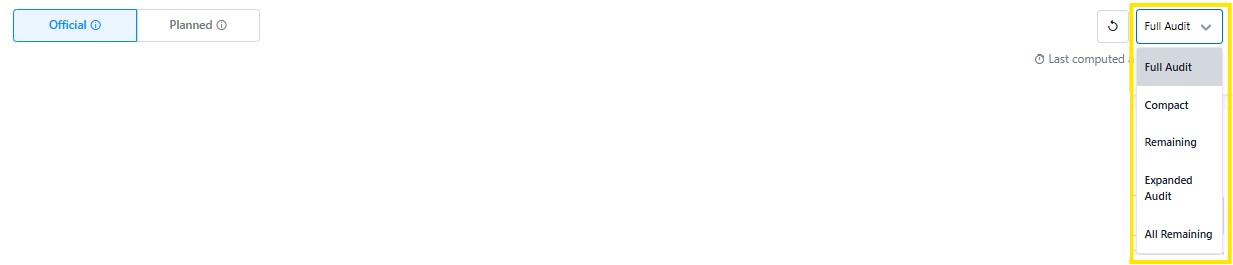
Tip: To review remaining requirements that includes program and institutional requirements, select the "Remaining" audit view. This is only available in the official degree audit. Requirements outlined with dashed lines have multiple courses that could fulfill the requirement; requirements outlined with a solid line have a specific course that fulfills that requirement.
This is where you and your advisor map out future courses by semester. Click on the Go to Planner button to access your Student Plan and Pathway. Clicking on Plan you Path link in the menu will also bring you to your plan.
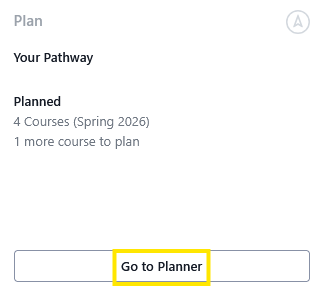
Tip: The Planned heading provides an at a glance summary current semester planned courses. Learn more about the Student Planner.
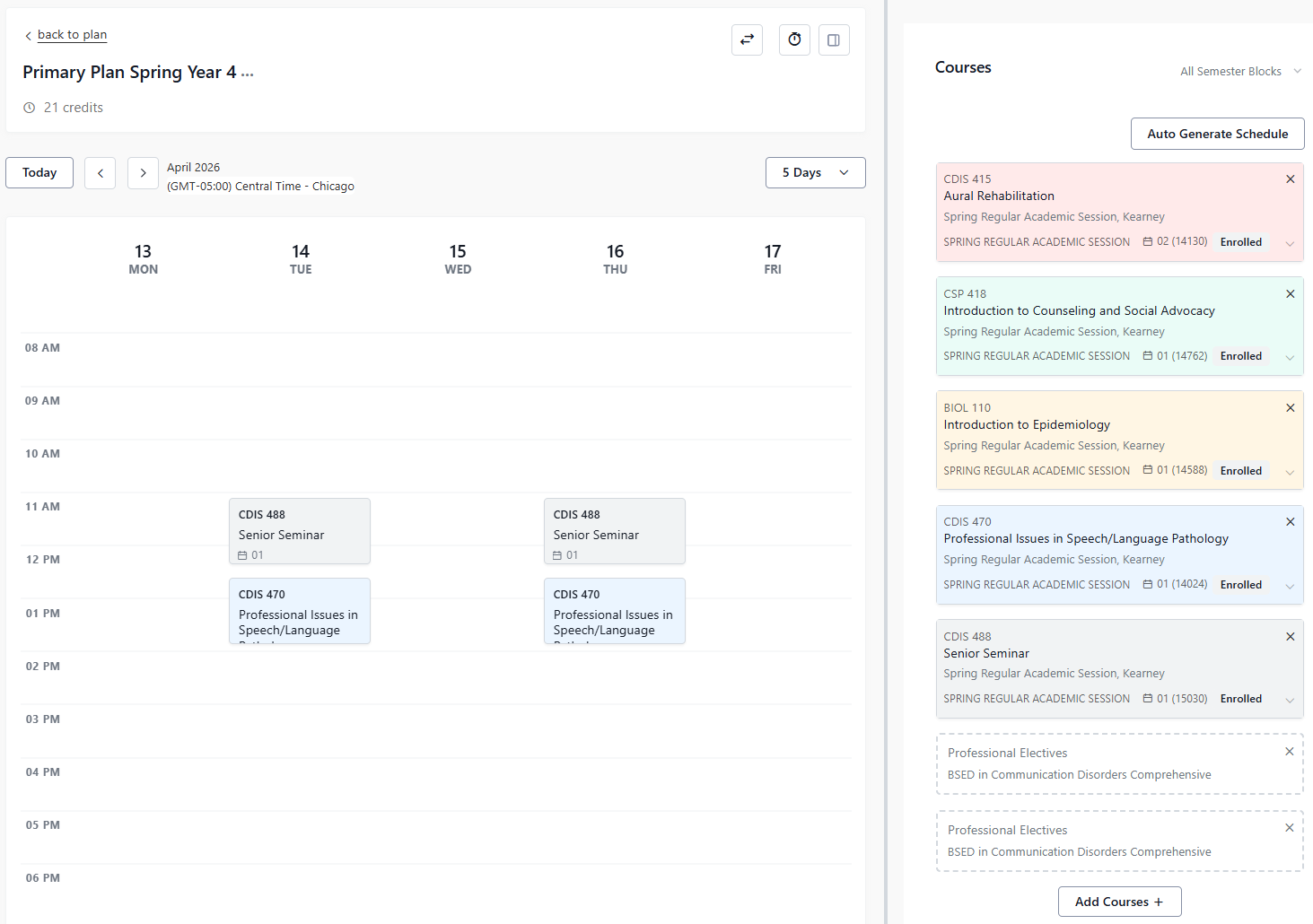
Visualize your course schedule in a weekly view, even add activities to keep all of your weekly commitments in one place. Click Go to Week View button to access your weekly schedule that was built in your student plan. Clicking on Schedule Semester Year (Schedule Fall 2026) link in the menu will also bring you to your weekly schedule.
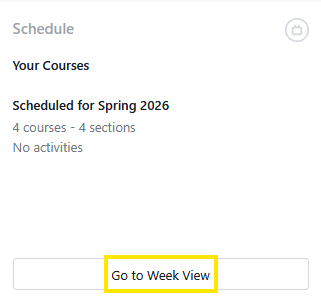 Tip: The Scheduled for Spring 2026 heading provides an at a glance summary current semester courses that you are enrolled in.
In the Home dashboard there will be a table of your semester course details.
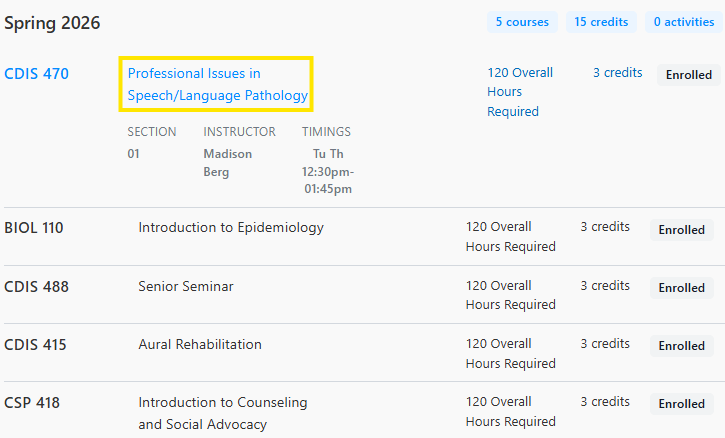
Tip: by clicking on a course, the course details, such as section, instructor and meeting times are displayed.
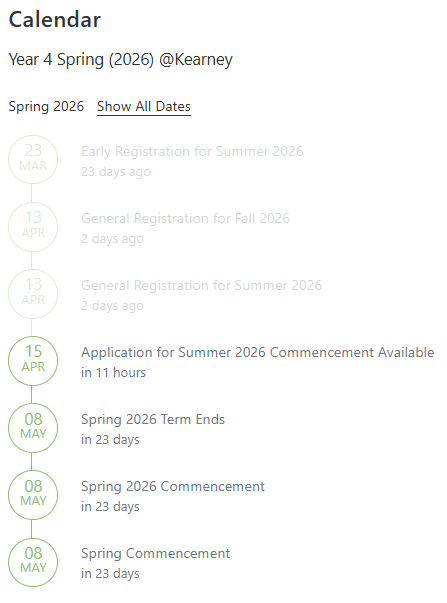
Review all upcoming academic dates and information you need to know.
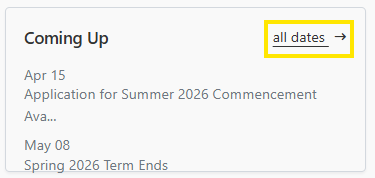
Click on All Dates to see the full academic calendar, by semester.
Thinking of a program change? Here you can explore Pathways and evaluate what courses would be needed.
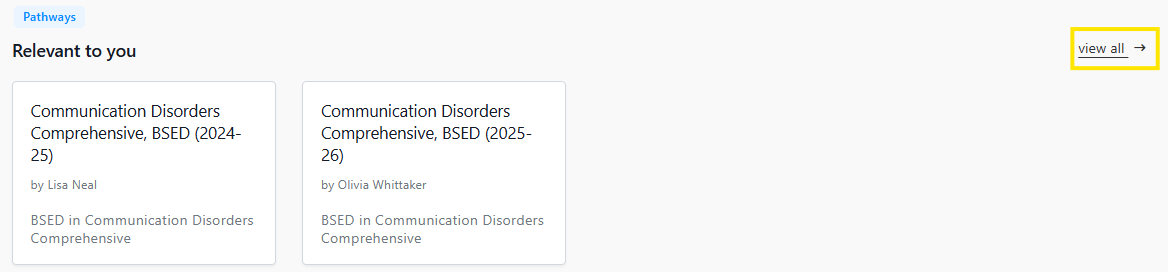 Tip: Clicking on View All, will lead you to the available pathways included by your current program. Learn more about Pathways. You can also access course, program and pathway information from the Explore link in the menu.
See all of your assigned advisors and their contact information. You can also message them through Stellic's messaging tool.
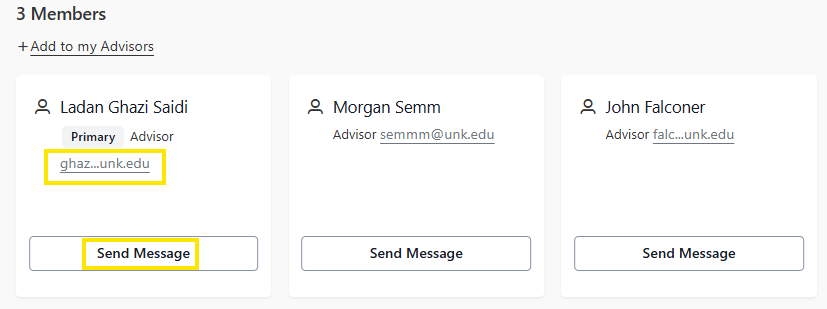
Tip: Clicking on the advisor's email address will give you the option to copy that address. Clicking on Send Message button will open up the Stellic in app messaging tool. Learn more about messaging in Stellic.
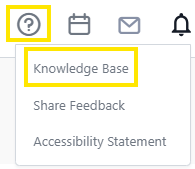
In the upper right hand corner of any page in Stellic you will find the links for: Help Menu, Calendar, Messages, Notifications and Profile Menu Setting.

Help Menu: This dropdown will direct you to the Stellic Knowledge Base, which is Stellic's training and reference guide for all of Stellic tools and features. These steps and instructions are general, and not specific to UNK.
Calendar: The Calendar icon will bring you to the academic calendar that is also found in Coming Up section of the Student Home.
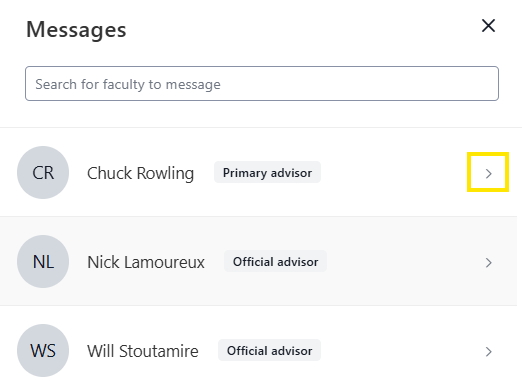
Messages: Clicking on this link will take you to your Direct Messages, where you can see your conversation history with your advisors.
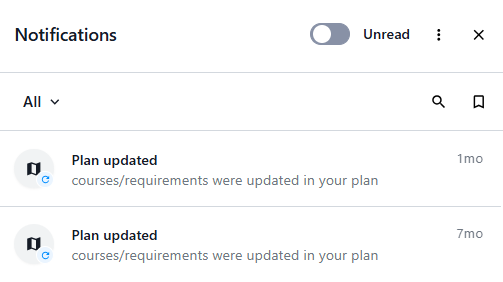
When you receive a notification it will land in your Stellic inbox. The inbox serves as a searchable feed for notifications that come through Stellic. You are able to filter for what's relevant, bookmark what you'll come back to, and navigate directly to the source of each notification.
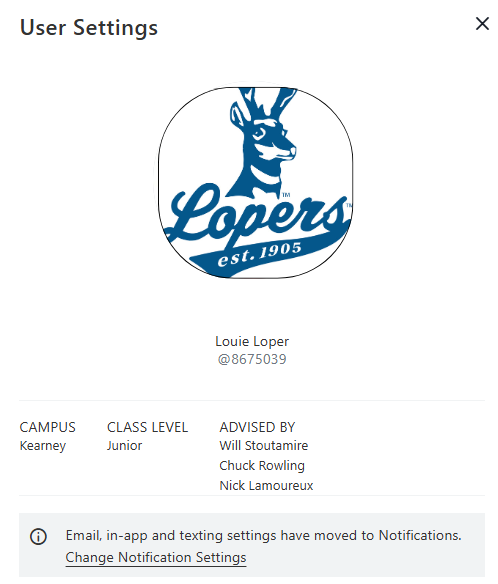
User Settings: In the user settings you can view your campus, class level, advisor list, update notification settings, update interests, audit viewing settings, and set accessibility preferences.
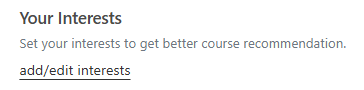
Update Interests terms that will display in your student profile, above the degree audit.
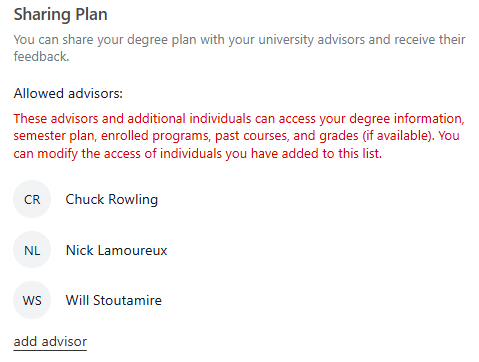
Advisors who have access to your Stellic information:
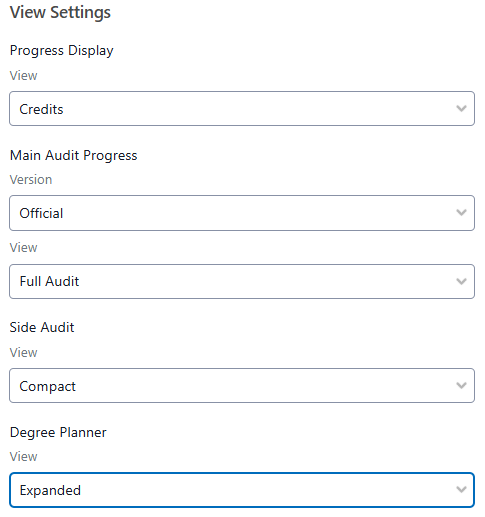
 View Settings: Set the default views for you degree audit and student plan.
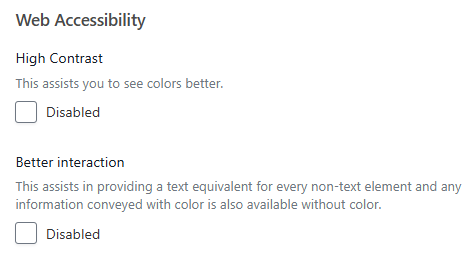
Web Accessibility, options for high contrast to see colors better, and better interaction in providing a text options for the progress icons.