
Stellic offers an intuitive design for students to plan and track their academic progress. Below are helpful explanations of the features and functions within the Stellic platform.
| Audit Types: Official & Planned | Progress Icon Definitions | Progress Icon Examples |
| LOPER Exceptions & Waivers | Unmatched Courses & Unrestricted Electives | Transfer Coursework |
The Official view shows any programs that you have officially declared within MyBlue. It also displays any completed, in progress and future term enrolled enrolled courses.
The Planned view shows any programs that you have officially or unofficially added to your plan. It will also display any courses completed, registered for, or added to your planner for future terms.
When reviewing a your audit, you can toggle back and forth between the official and planned audit by selecting the appropriate option. The option that has been actively selected appears in a darker shade.
Tip: Please pay attention to which audit type you are viewing when as Official and Planned do not always provide the same information. The default audit view is the Official view.

Stellic uses an variety of icons and colors to indicate the status of courses and requirements throughout a student's audit.
Color Coding: Green indicates a course or requirement has been satisfied. Dark Orange indicates a course or requirement is in progress. Light Orange indicates a course or requirement has been selected as planned.
Tip: When reviewing an audit, hovering your cursor over an icon, an explanation of that icon or how it is being used will appear. This is helpful when interpreting the status of courses and requirements.
Progress Icon Overview
Stellic Progress Icons
| Icon | Description |
 |
A course or requirement has been satisfied. |
 |
A course or requirement is in progress. |
 |
A registered course in a future term, or a requirement with a future registered course. |
 |
A planned course, or requirement being satisfied with a planned course. |
 |
A remaining course or requirement; a number will appear in the box indicating the specific number of remaining credit hours. |
 |
A completed milestone. |
 |
A milestone that will be satisfied by a registered course. |
 |
A remaining milestone. |
 |
A planned milestone. |
Additional Information: To provide more insight into how courses are being applied, additional Icons will be placed on the right side of a course or requirement heading.
| Icon | Description |
 |
Course is counting toward multiple requirements. |
 |
Course is being used as a equivalent to the required course. |
 |
Additional information that requires attention. Examples: Course taken but grade requirement was not met, or course is not being counted due to overlap/duplication. |
 |
Course is fulfilling a parent requirement and may appear in multiple locations. |
Examples of common progress icons usage:
Course equivalency, TE 218 has an equivalency to TE 318 and is being double counted. By hovering the cursor over the  icon, an explanation will appear. The course is also in progress as indicated by the
  icon.
icon.

Course Planned, BIOL 103 is in the planned audit for Spring 27. The light orange icons are only available in the planned audit version.
Requires attention, CYBR 304 is not being counted for the students requirement as they need to earn a C or higher.
Registered for future term, the student has registered for ART 100 in a future semester. The course is also satisfying more than one requirement.

Remaining required course,
Milestone registered, Milestones that will be satisfied by courses a student has registered for.

Students admitted in UNK as a transfer or readmit student with 18+ hours of general education coursework or 24+ of any coursework are not required to complete a LOPER 1 course. The LOPER 1 requirement will be checked off and you can click the Waived button to see that the student has the tag of “First Year Seminar Waived”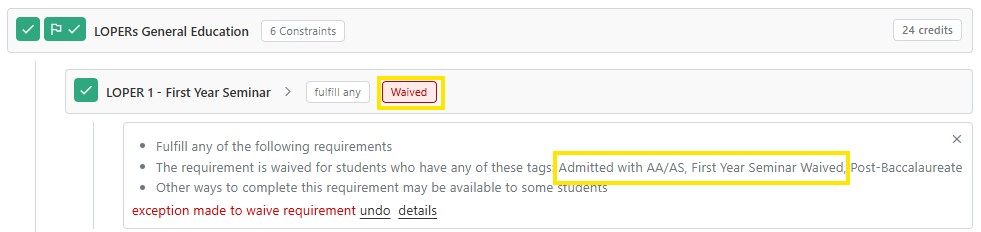
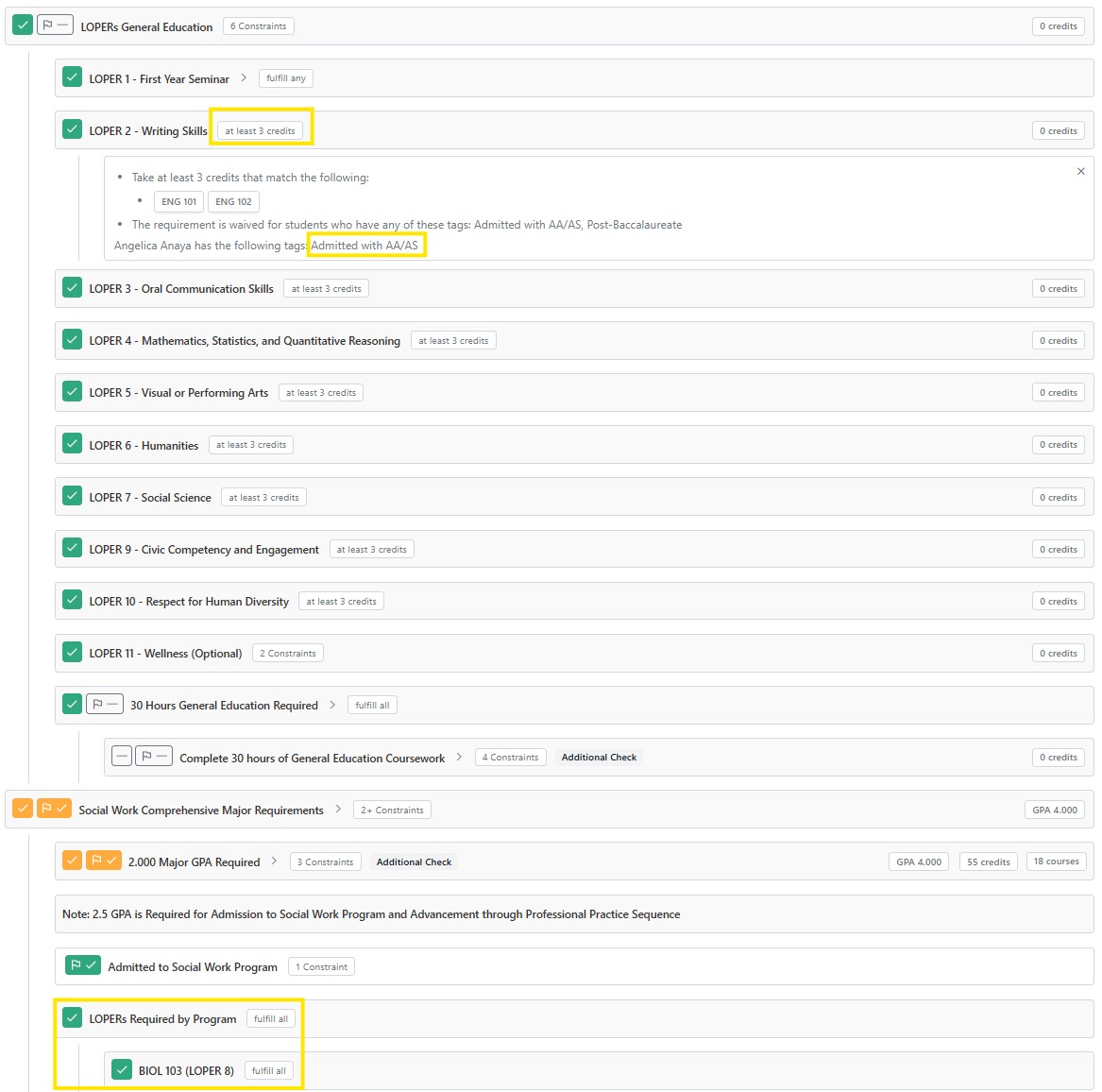
Students admitted with an Associate of Arts, Associate of Science, or a bachelor's degree from a regionally accredited institution are exempt from completing the Lopers General Education requirements. By clicking the constraints on any of the individual Lopers to see that this student has a tag of “Admitted with AA/AS”
Tip: Students who are exempt from Lopers General Education requirements must still complete the Lopers required by their major.
Example:
Unmatched courses are taken or completed courses that do not fulfill any program requirements. Typically unmatched courses include courses that were failed, withdrawn or repeated and the second attempt was completed with a higher grade.
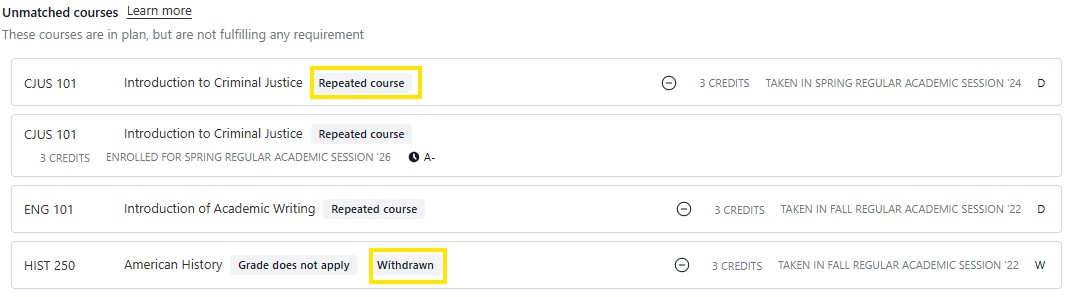
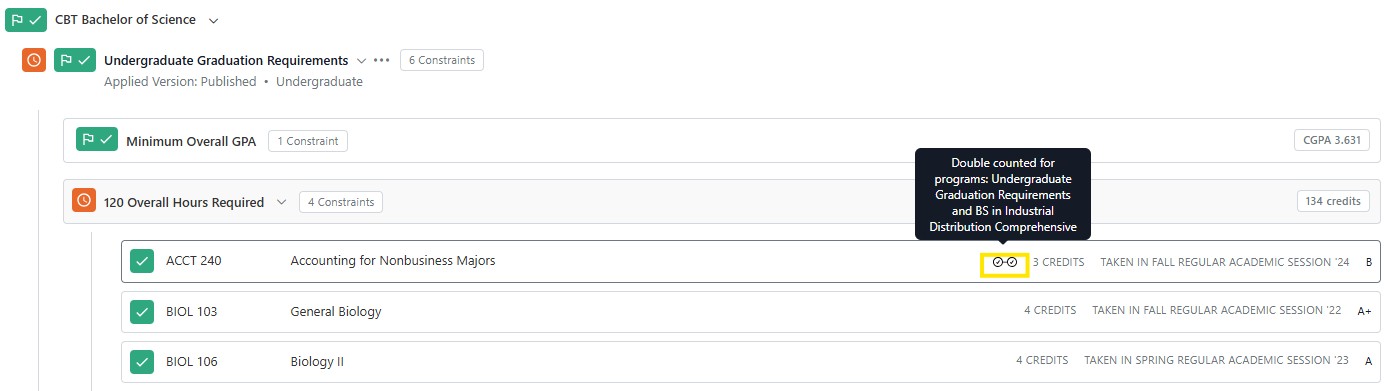
Unrestricted Electives There is no section grouping of unrestricted electives. Courses that are not being applied to a major or minor, but are being applied to other requirements such as the institutional requirements can be viewed from the 120 Overall Hours Required Section.
In the example below, a course that has both green check & double check icon (ACCT 240) is being used to fulfill multiple requirements. Courses with a green box and checkmark (BIOL 103 & 106) are essentially unrestricted electives as they are only being used for 120 overall hours and overall GPA.
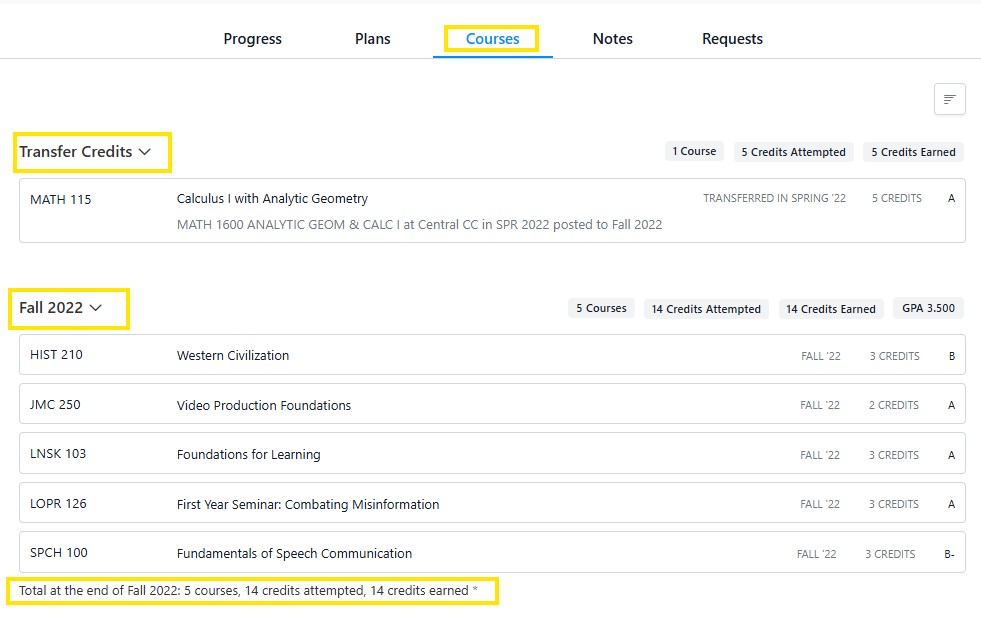
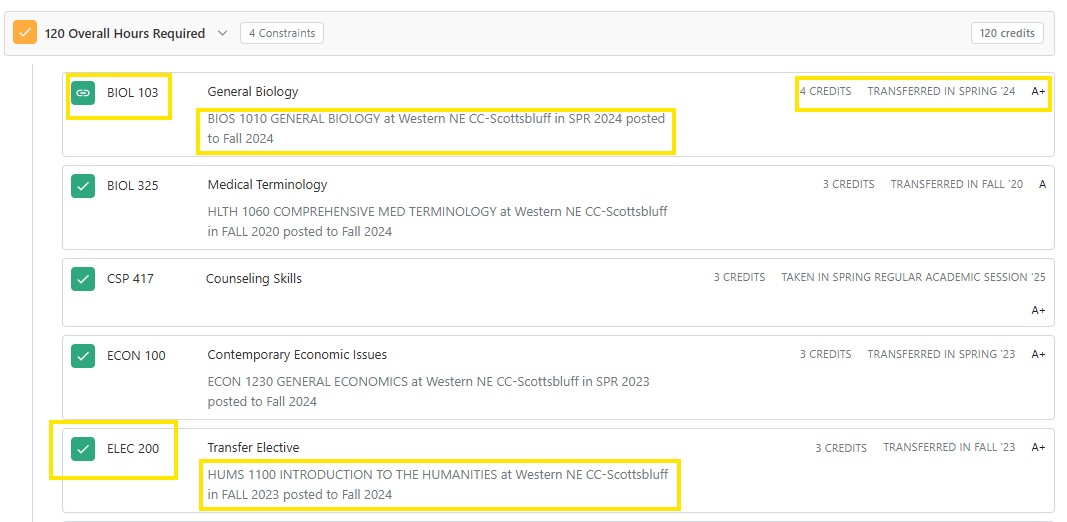
There are two options in viewing transfer coursework. In your audit under the progress tab, click on the 120 Overall Hours Required and a drop-down list of all your courses that are completed, in progress, registered for, and transferred in will display. Transferred coursework will include information such as the course name and number from that original institution. If the course has a UNK equivalency it will be indicated which UNK course it’s fulfilling. If the course has been transferred without a UNK equivalency, it will be designated as an elective and given its course level 100-400.
Another way to view transfer coursework is to click the Courses tab in your profile. Here you can view course history chronologically. Transfer coursework will be listed first, followed by a semester-by-semester view of the courses a student has completed. At the end of each semester there is a summary total of courses and credits earned.