

Pathways are example templates that outline how a program could be completed with recommended courses and requirements sequenced by term. Pathways are similar to Four Year Plans that can be found in the Catalogs and Course Information. Students can utilize Pathways when exploring and building their student plan. Pathways assist advisors and students in term by term planning, rather than just providing students with a list of all classes needed. Pathways can be applied to a Student Plan as a initial foundation of the Plan itself.
Tip: Pathways do not always include institutional requirements, or additional minors but rather recommended courses sequenced by semester. Actual course selection and sequence will vary individually by each student.
Quick links to topics on this page:
One way to to explore Pathways is to navigate to Pathways tab on the left hand menu 
By default, you'll see Pathways most relevant to your academic program. For example if your program is BS in Exercise Science Comprehensive, the available pathways to you will be displayed. They are variants of catalog years.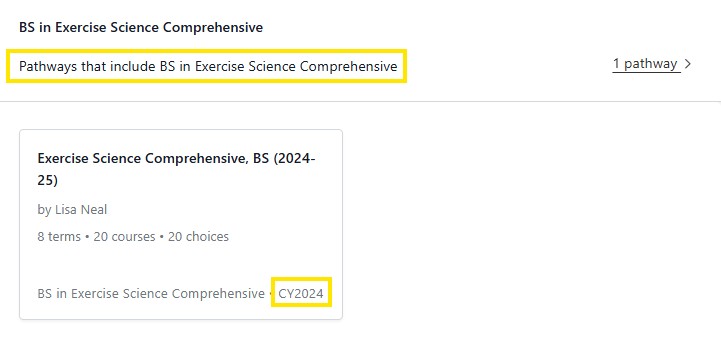 To browse other available Pathways outside of your declared program, navigate to the All Pathways section and click on the pathways link.
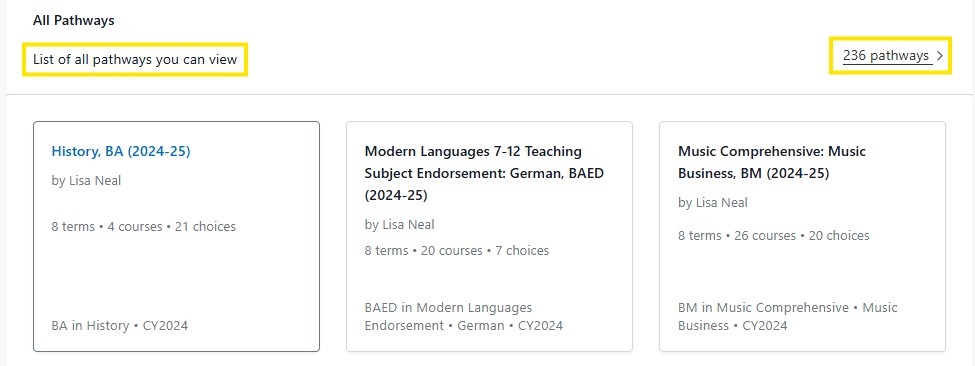
Here you can Select a Pathway to view its requirements and recommended sequence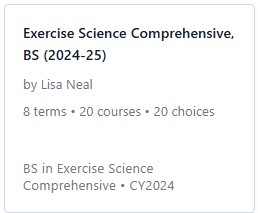
Example sequence of a program's audit:
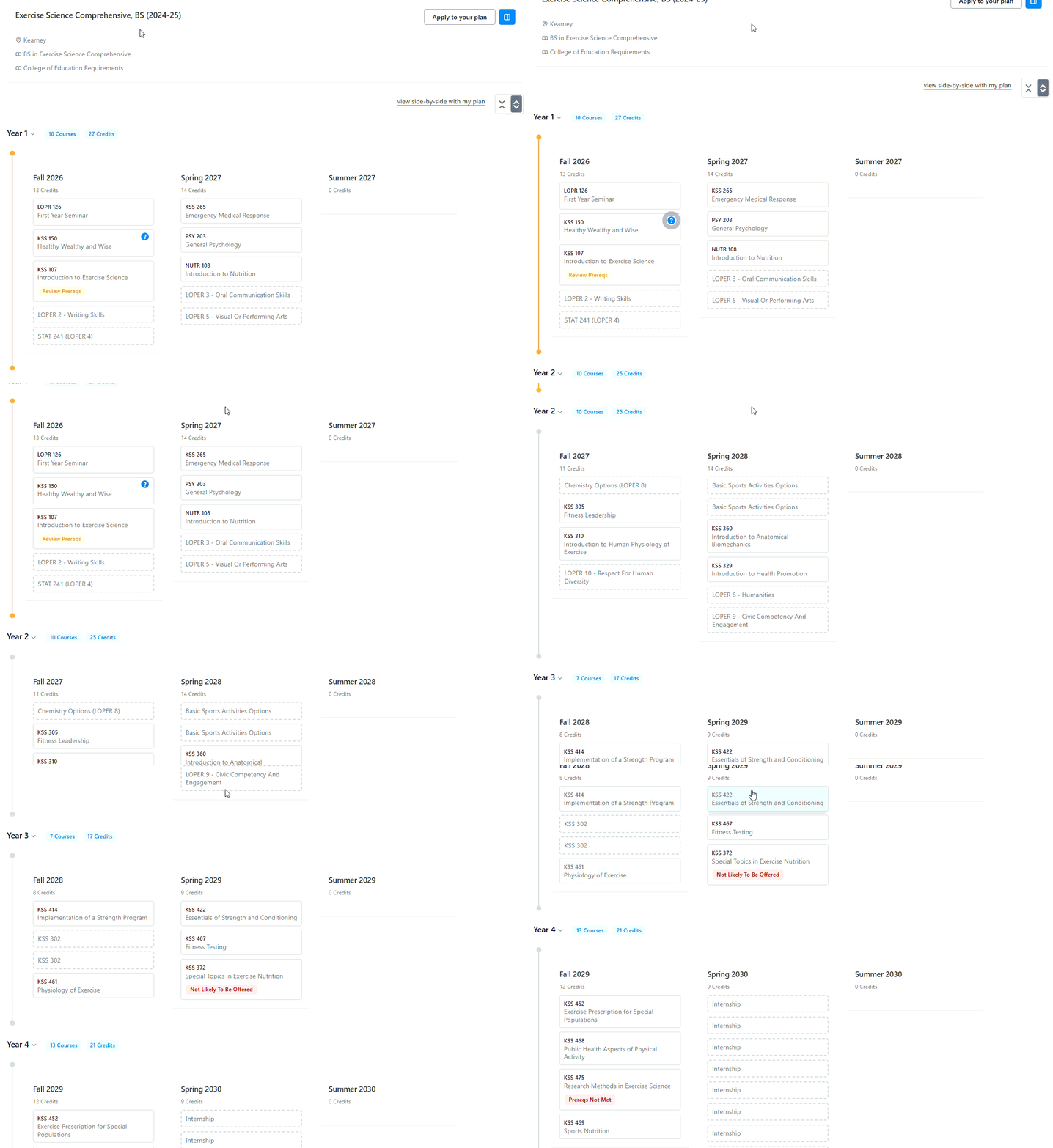
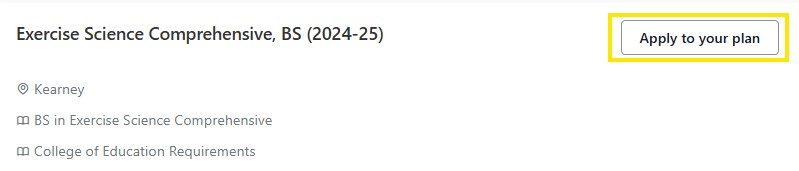
When you have identified a Pathway,to add to you student plan, at the top of the chosen Pathway audit, select the Apply to your plan button. Here you will see your student plan with the recommended courses outlined by suggested semester.
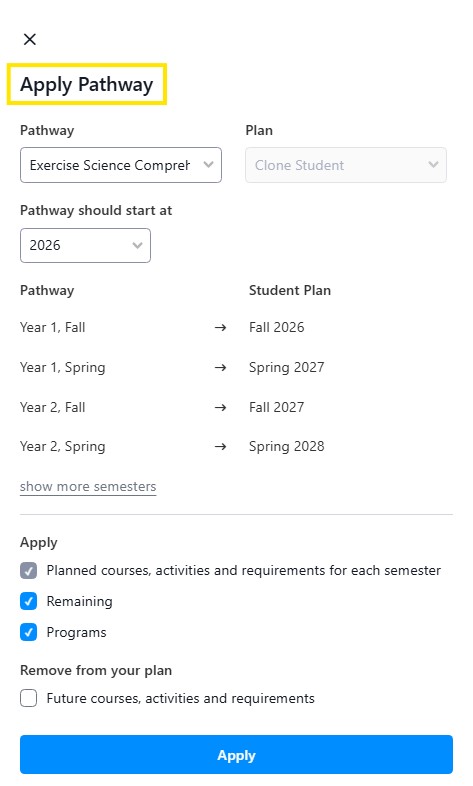
Next, an options window will appear, Pathways available to you will be preloaded by your program. You will have the option to select which catalog year your pathway should start at, this will populate to your current catalog year. Click the Apply button when your selection is complete.
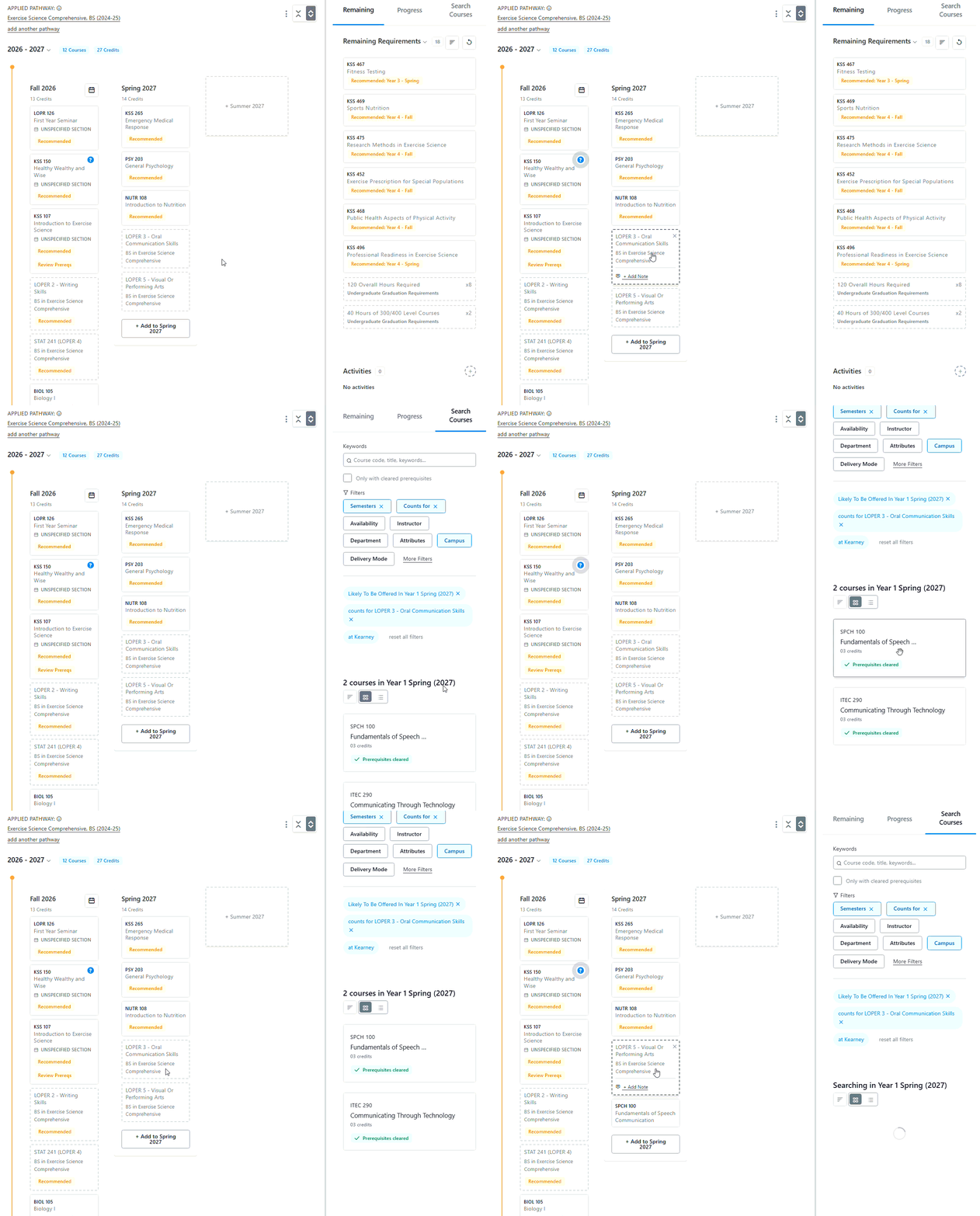
After applying a Pathway, your student plan will load with the courses recommended. To select specific courses and sections, click on the particular placeholder, and select an available course from the Course Search in the sidebar, to drag and drop a specific course into your Plan.
Here you will also see prior coursework that has been completed, placed into your plan where applicable.
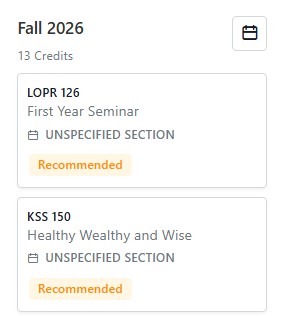
When a Pathway is applied to your plan, you'll notice:
Courses automatically added to future terms
Yellow recommended tags identifying Pathway-sourced courses
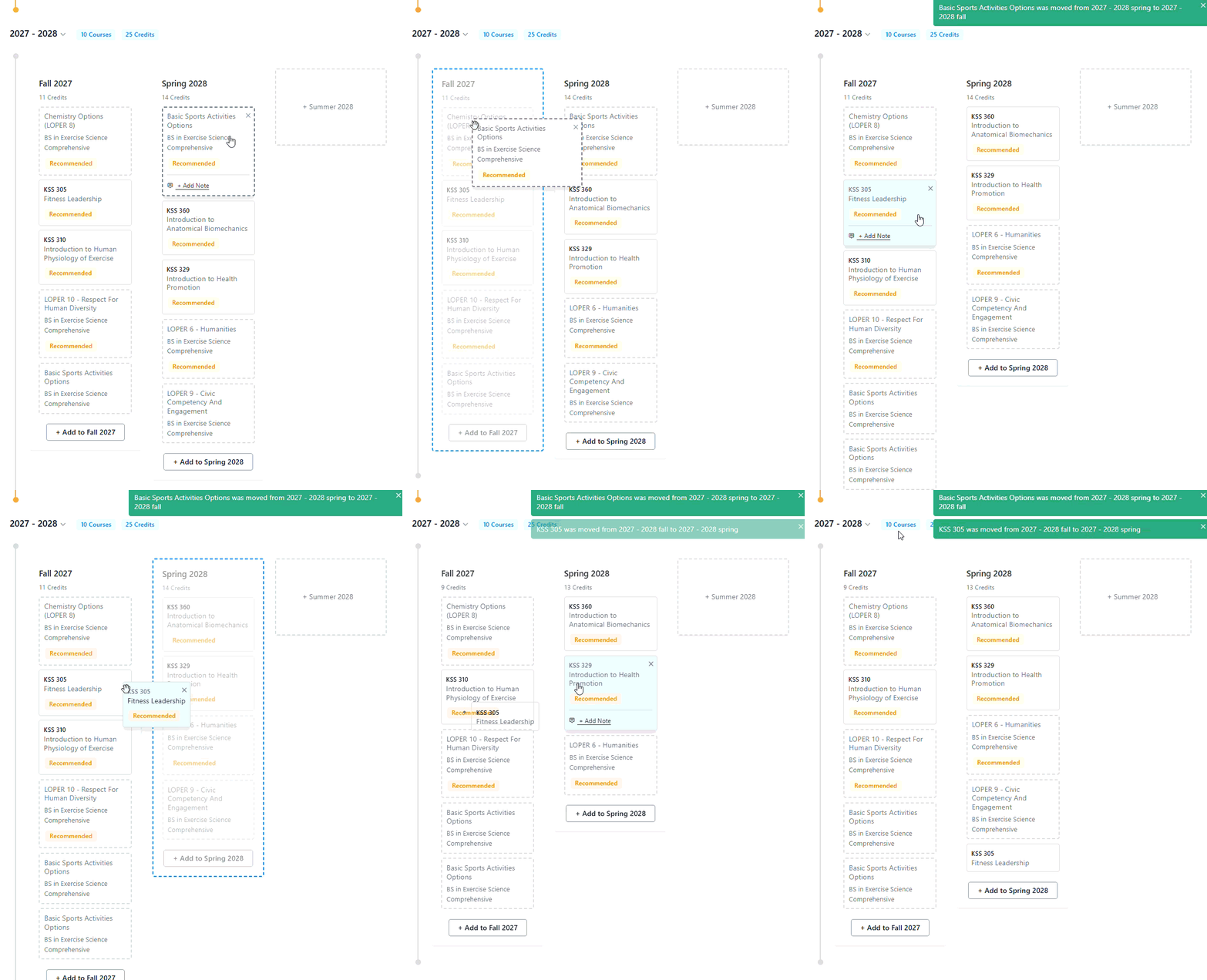
Move recommended courses between terms using the drag and drop functions.
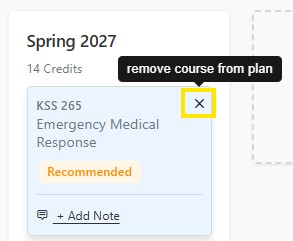
Remove individual recommended courses by clicking on the X button in the top right corner of the course tile.
Clear all future planned courses by clicking the three-dot menu (⋮) at the top of your planner and selecting Remove All Future Courses

You will know if a Pathway has not been applied to your Student Plan if the Applied Pathway heading is blank.

To apply a pathway to your Student Plan, click on the Select Pathway link in the heading of your student plan.
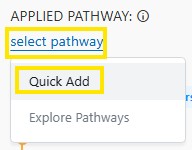
Next, an options window will appear in the same way as the browse pathway function.Click the Apply button when your selection is complete.