

Quick links to topics on this page:
| Connecting with an Advisor | Notifications Settings | Managing Your Preferences | When You'll Receive Notifications |
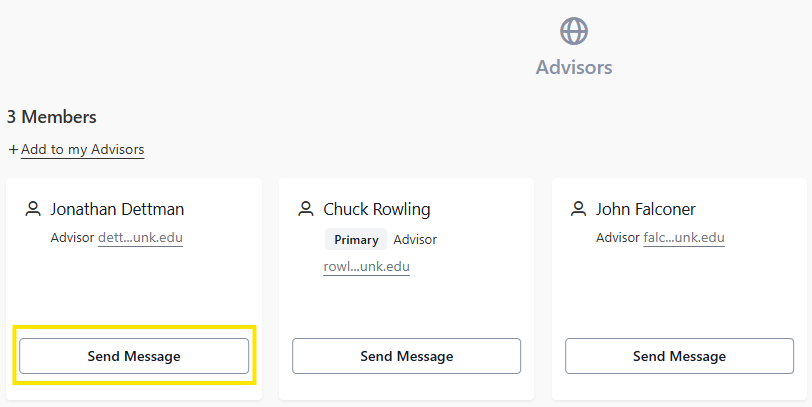
In Stellic you can send 1:1 messages to your advisors. From the Student Home you can find your advisors listed at the bottom of the dashboard page.
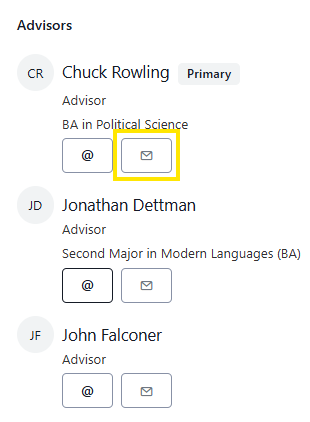
Also from your Student Profile, a top your audit, you can click on the Envelope button to open up the messaging box.
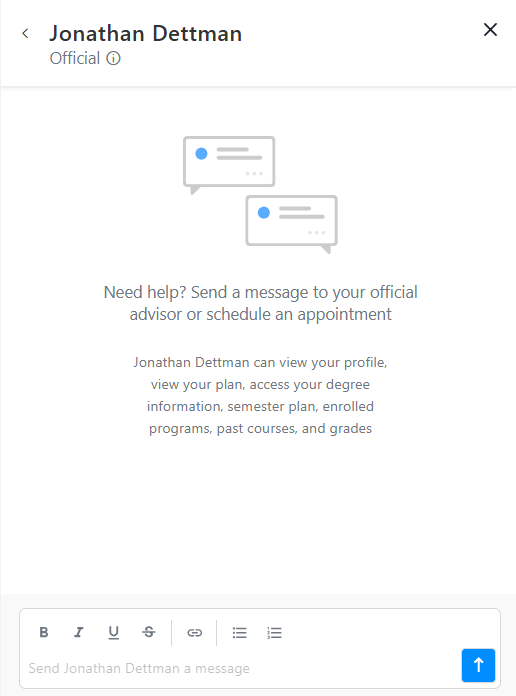
Click on the Send Message button, and a the messaging dialog box will appear. Here you can communicate with your advisor to stay up to date on advising appointments and to connect when building your student plan.
Stay informed about your academic journey with Stellic's notification system. You'll receive updates both by email and within the Stellic platform when important changes occur.
Notification Types
In-app notifications: Appear in Stellic when you're logged in look for the notification bell in the top right corner.
Email notifications: Sent to your student Loper email address
Notification digests: Multiple related notifications may be grouped together in a single email that send daily.
You can control when and how you receive email notifications through your notification settings. Some notifications are sent immediately, while others are grouped and sent as digests to reduce email volume.
To change your settings, click on your student profile icon, in the top right corner of your stellic page, then click on Settings.

Next click on the "Change Notifications Settings"

Here you will have the option to select the notification frequency settings. The options are daily email digests, or email notifications instantly when the notification occurs.

Your Academic Plan: When your advisor adds activities, classes, or requirements to your plan, you'll receive:
An in-app notification immediately
An email notification within 5 minutes (this slight delay allows similar updates to be grouped together)
Notes from Your Advisor: When your advisor creates a new note that's visible to you, you'll receive:
An in-app notification immediately
An email notification within 5 minutes
Edited Notes: If your advisor edits an existing note, you won't receive a new notification—the original note is simply updated.