
In Stellic you can build and manage your student plan with your advisor. If you are thinking of changing your major or minor, you can browse programs and their requirements to explore your options.
Quick links to topics on this page:
| Browse Programs | Add Program From Program Browsing |
| Adding Program From Student Plan | Removing A Program |

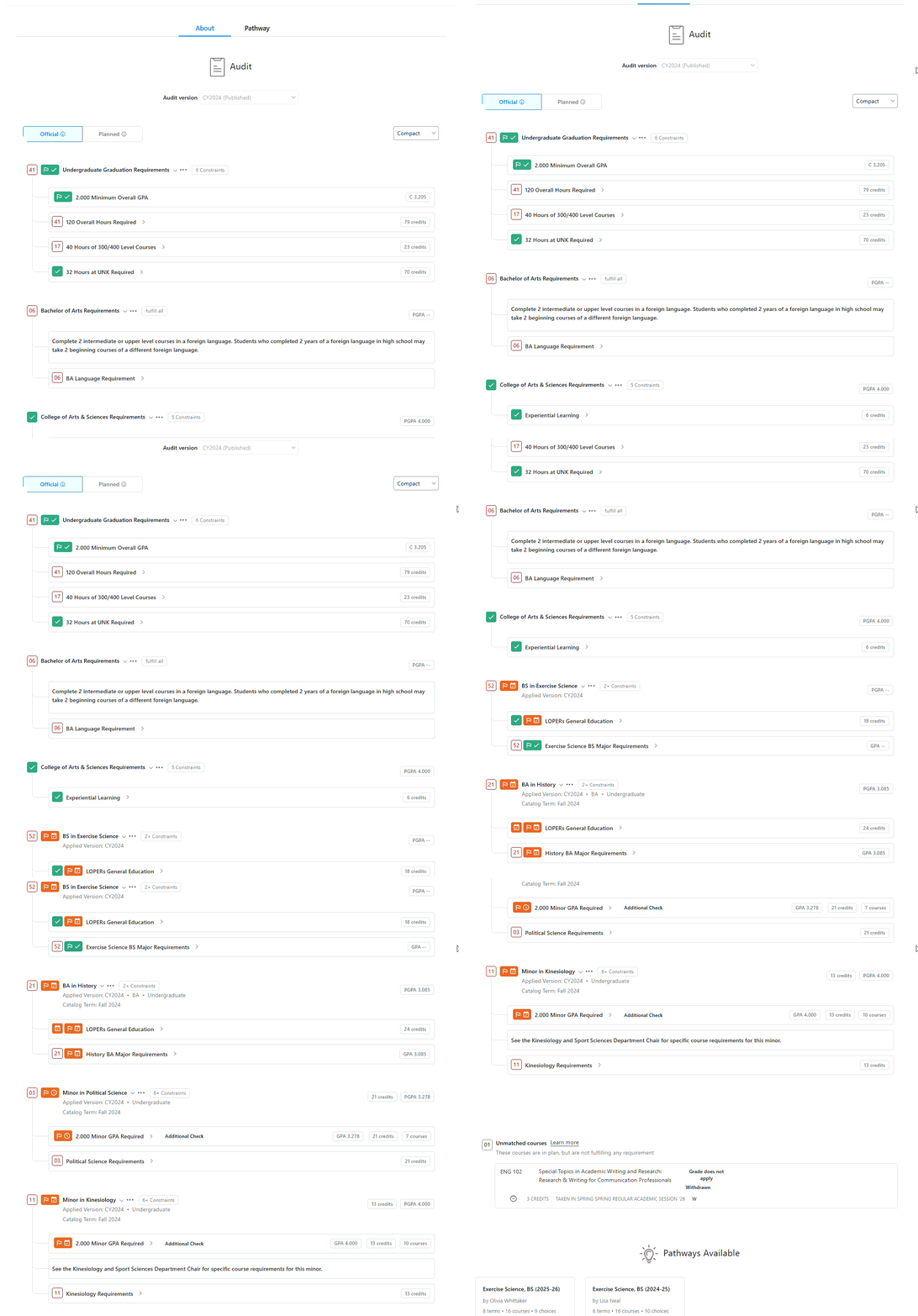
Example of a Program Audit, BS in Exercise Science:
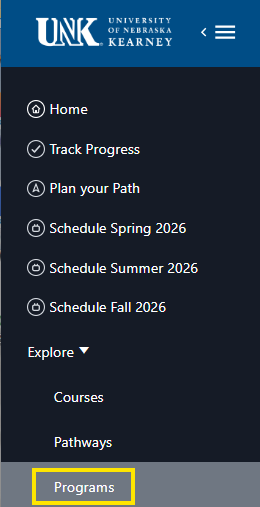
From the Programs Tab on the left hand menu:
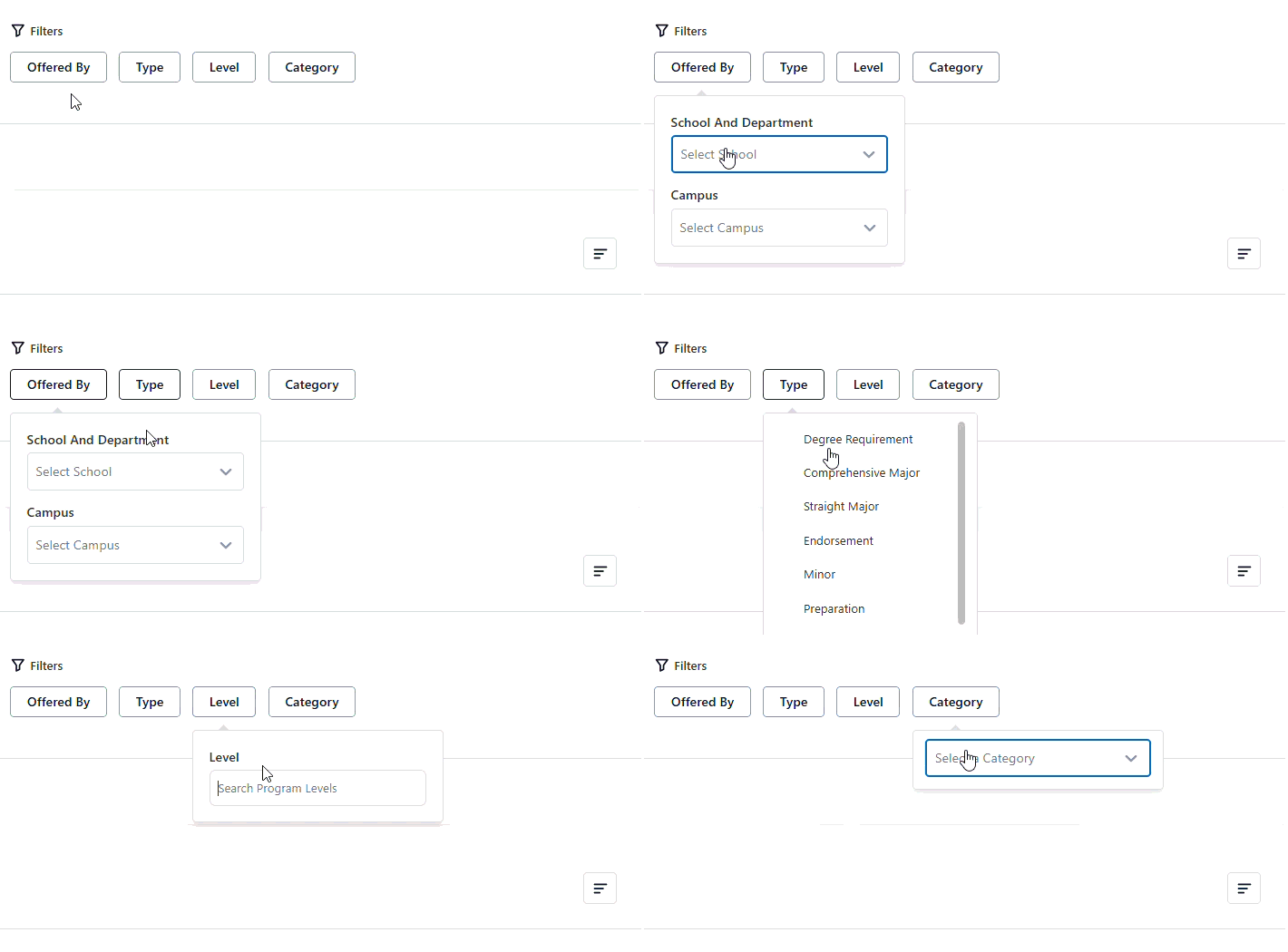
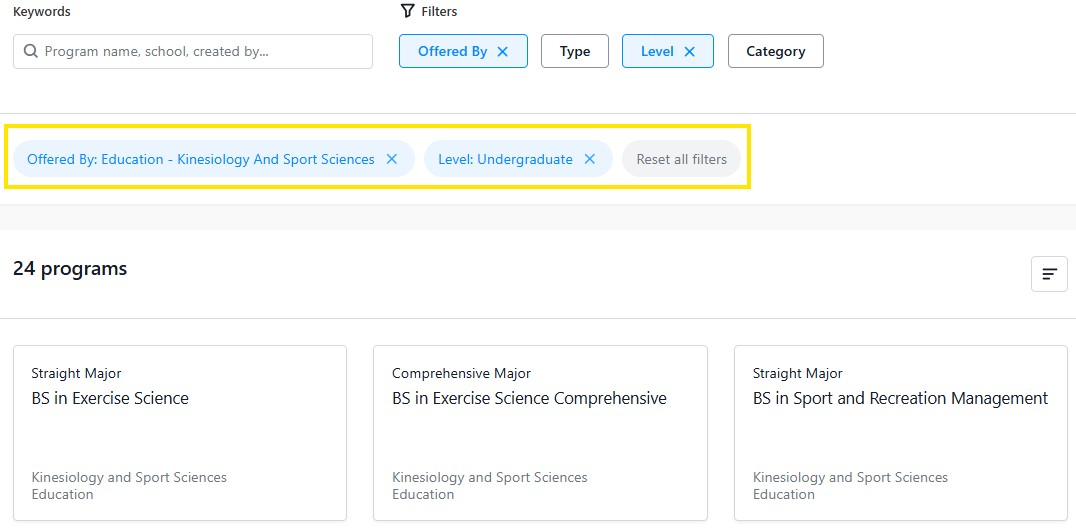
Search or browse your desired program to explore, click on the Program card and bring up the
Click Add Program button at the top of the Program's heading.

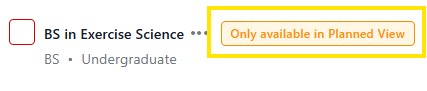
The program now appears in the Planned view of your degree audit. The orange label, "Only Available in Planned View" will indicate that this program cannot be viewed in the Official audit, until the program is formally requested by completing the Program/Plan change form in MyBlue.
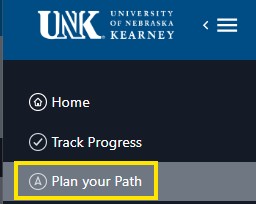
Click on the Plan your Path tab, or the Plans tab in your audit that will direct you to your Student Plan.
 Or
Or

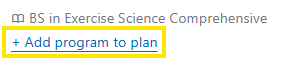
Click + add program at the top of your Student Plan.
Search for your desired program and click the + to add program
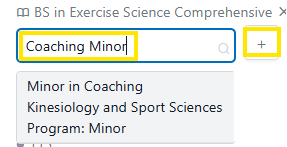
A pop up window will appear asking if you are sure you want to add the program, click OK to proceed.

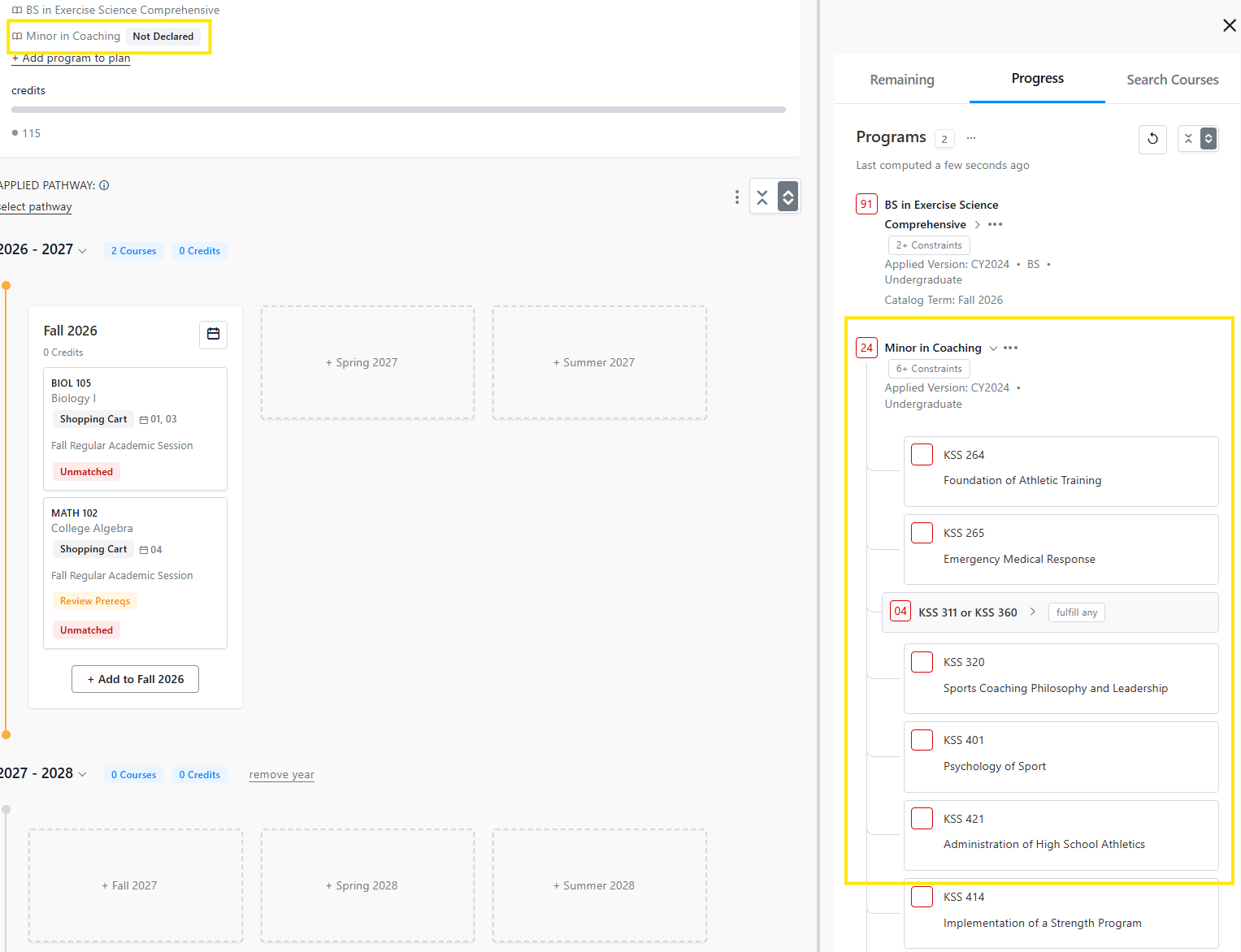
Once added, you are back to viewing your Student plan, in the Progress tab on the right hand sidebar, you can law the remaining courses and requirements for the newly added program.
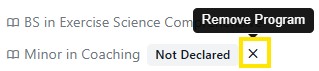
Removing a program in Stellic only affects your planning view. At this time to officially change your Program or Plan, students need to complete the Program/Plan change form in MyBlue.
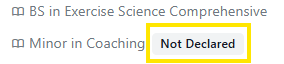
For officially declared programs, when adding a program, the program remains visible in Stellic with a special indicator stating "Not Declared".This serves as a reminder that you still have completed the Program/Plan change form in MyBlue.