Below are some of our frequently asked Stellic questions for faculty and staff advisors. If your question isn't answered below, please contact us at unkstellic@unk.edu
Training and support for students, faculty and staff is offered as they gain access to Stellic. The Office of the University Registrar and Academic Advising & Career Development is currently developing training materials and opportunities. Staff will be available via email for ongoing support.
Yes. Stellic is not a replacement for MyBLUE. MyBLUE performs a variety of functions and contains types of information that Stellic does not.
Yes, Students can register for courses in Stellic. For guidance on this process refer to Stellic for Advisors & Stellic for Students for step by step directions and video tutorials.
Students can also continue to register for classes in MyBLUE until notified otherwise.
Faculty and staff will receive emails from the UNK Registrar's Office. For new advisors, to ensure that they understand the platform’s capabilities and how to use them, they will be required to undergo training to gain access to the platform. Please contact us at unkstellic@unk.edu with any questions.
Stellic updates from MyBLUE overnight. It may take up to 24 hours for changes to display in Stellic.
Nightly updates include the loading of transfer credits, advisor changes, student demographic changes and general platform updates.
Instant updates include, program changes once processed in MyBlue, course substitutions and exceptions, hold notices.
Students that have graduated will be designated as "certified" and remain in that status for 2 years until they are archived in Stellic.
Student's that are not currently enrolled in any coursework remain active for 2 years until they are discontinued in MyBlue. After discontinuation their Stellic student profile will be archived.
If they have submitted a chosen name in MyBlue, Stellic will use chosen name. If not, Stellic uses the student’s legal name.
Yes, students are able to send messages directly to their advisors through Stellic. Likewise, advisors can message students individually or through bulk messages. More about messaging feature and functions.
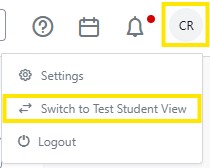
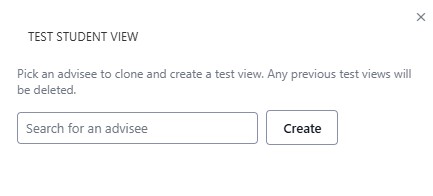
Yes. This is called “Test Student View.” To do this, click on your initials or profile picture in the upper right hand corner of your screen. Choose Switch to Test Student View from the menu and enter the student’s NU ID or name when prompted.
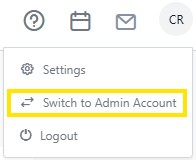
To switch back to your advisor view, click on your initials or profile picture and choose Switch to Admin Account from the menu.
Once a student has completed a program or plan change form in MyBlue, a staff member of the Registrars' office will apply the request. The change will display in Stellic once processed in MyBlue.
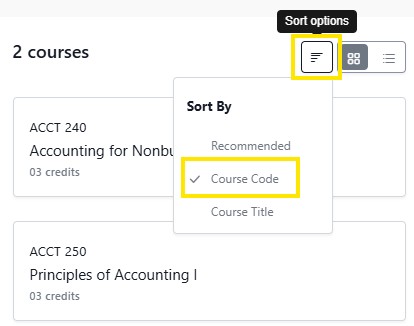
Keeping the Sort Option on Course Code is the easiest way to sort and advisors can make recommendations based on their knowledge of the degree and their conversation with the student. The “Recommended” sort is fed by an algorithm that combines courses completed by the student and their interests but may sort courses you would strongly recommend to the bottom.
To view the history of changes such as exceptions, program and plan changes click the clock icon in the top right of the student's profile page. You can view the history of actions made by advisors, students, registrar staff or data updates, on a student's plan.
A side-bar will appear to display actions taken on a student's plan. You can see actions to the entire plan, or actions done *to* a certain semester, using the drop-down menu at the top as well as who made the changes and when.
Stellic organizes requirements into groups and implements a nested format to group and view requirements. Electives are often placed near the end of a program's audit.
There is no section grouping of unrestricted electives. Courses that are not being applied to a major or minor, but are being applied to other requirements such as the institutional requirements can be viewed from the 120 Overall Hours Required Section.
If the course does not have the double checkmark icon, that indicates that it is not being used in any Major or Minor.
There is no section grouping of unrestricted electives. Courses that are not being applied to a major or minor, but are being applied to other requirements such as the institutional requirements can be viewed from the 120 Overall Hours Required Section.
If the course does not have the double checkmark icon, that indicates that it is not being used in any Major or Minor.
The 120 Overall Hour Required section includes all courses a student has completed, is currently enrolled in and registered for in the next term. Transfer courses and unrestricted electives are also placed here. Courses that are being used to fulfill more than one program requirement are indicated with a double checkmark icon. Courses without that icon are designated as unrestricted electives. See progress icons definitions and how they are used to fulfill program requirements.
The 120 hours section of the degree audit can exceed 120 hours if the student has taken additional courses that count toward their degree. If this total is higher than 120, you should check this total to make sure that any extra courses were taken for a purpose. In most cases students with over 120 overall hours have transferred in coursework or have completed a significant portion of a program before changing to a different program.
Incomplete grades appear within the requirement for which they will count once completed. An easy way to catch these is to scan the student’s course history in the Courses tab to look for any Incomplete. Or scan the degree audit and look for courses graded with an I. Also in the 120 Overall hour heading, click on that and a drop down of all courses taken or in progress will appear.
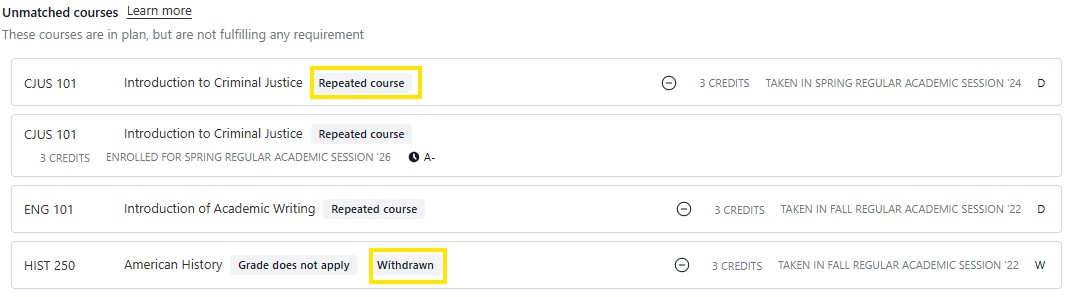
The unmatched courses are grouped at the bottom of the degree audit. Unmatched courses are taken or completed courses that do not fulfill any requirements. Typically unmatched courses include courses where a student failed or withdrew or repeated and the second attempt was completed with a higher grade. In rare circumstances, if a student has completed a course more times than allowed, Stellic will place those credits in the unmatched course section. Approval from the Registrar's office is needed to make that specific exception.
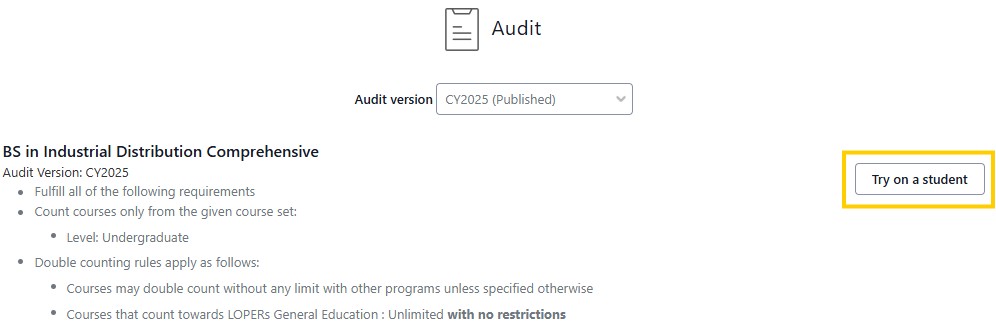
Yes. This is called “Try on a student” where you selects a program, major or minor and enter in a student's NUID to view their audit as it would with that program change. Here are the steps to try on a major or minor:
Click on Programs on the left menu bar of your screen.
Search for a major or minor. Open the major or minor.
Click the Try on Student button and enter the student's name or NU ID.