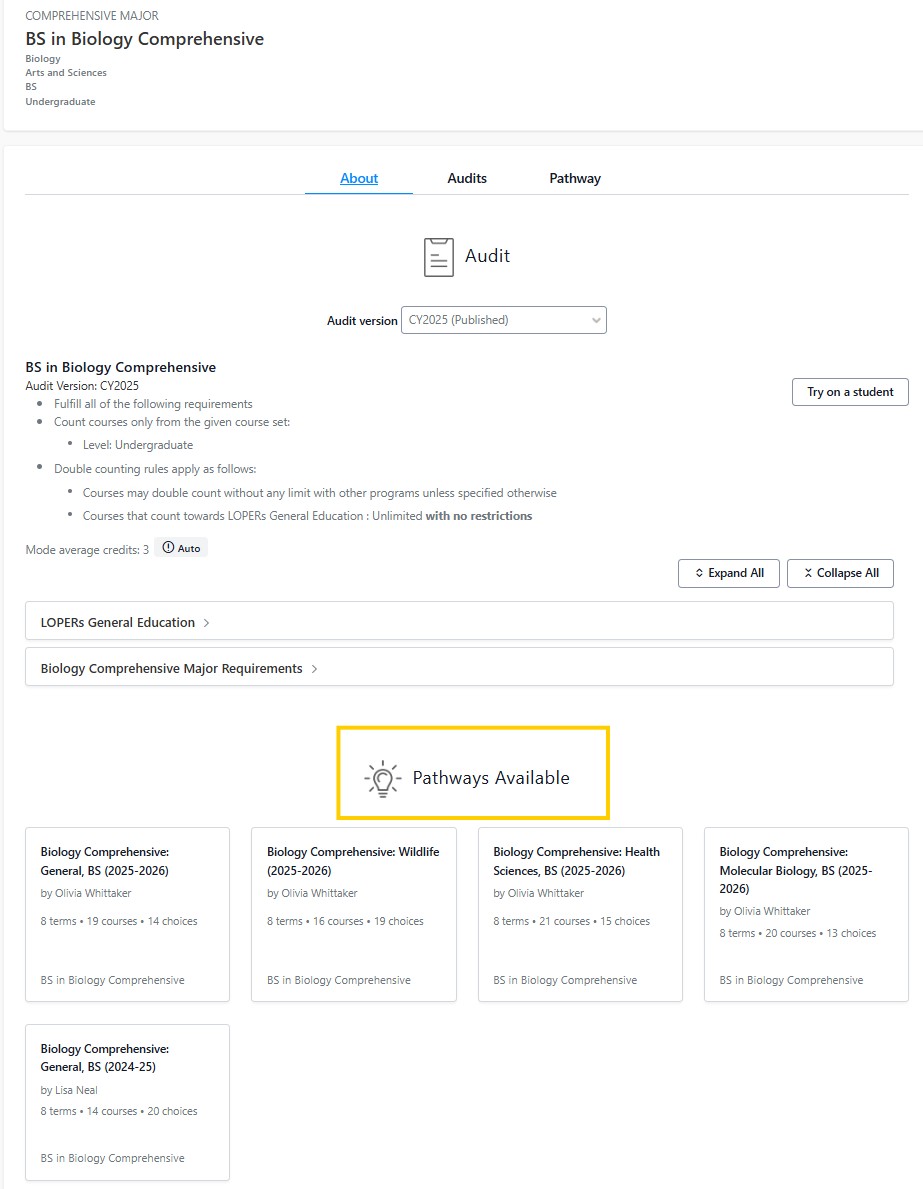

The Program search function provides users with a comprehensive tool to quickly browse and search through available programs for in-depth course and requirement information.
Quick links to training topics below:
| Program Search Filters | Programs in Detail | Try on a Student |
| Audits | Pathways |
Click the "Programs" tab in the menu to browse academic programs.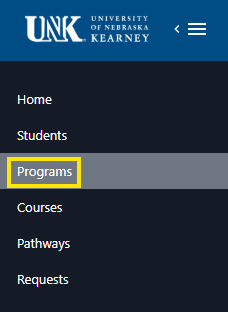
Enter anything into the search bar to search by keyword. There is also options to help filter your search.

Offered By Filter:
The Offered By filter allows you to search programs based off of which School and Department a program is housed in addition to Campus.
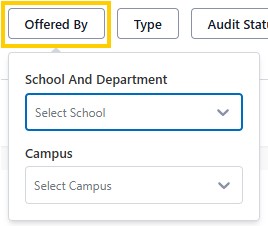
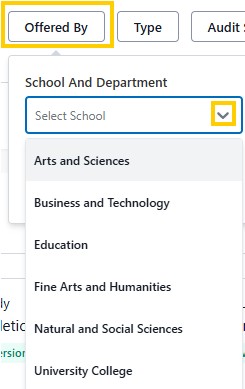
To filter programs by School and Department click on the drop down button for the list of available options. University College will filter out results to certificate, deciding and nondegree options.
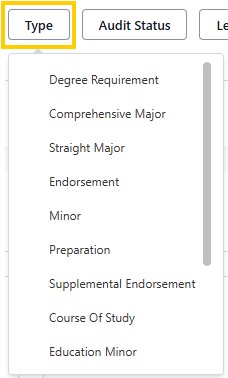
Type Filter: This filter allows you to select programs based off of their program type such as Major, Minor, Comprehensive Major, Straight Major, Preparation program etc.
Audit Status: When viewing a Program tile, you will notice the number of published versions. This refers to the past catalog years available. This is helpful when assisting an advisee in program planning as you can view any audit/catalog changes by year. There are two options to filter programs by Published Audits.
Click the Audit Status filter button and select Published
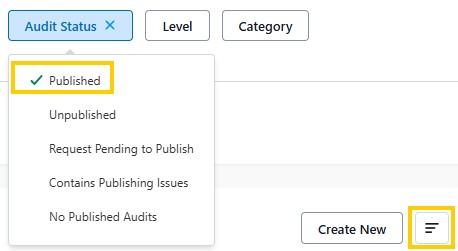
Or click on the three lines to select sorting options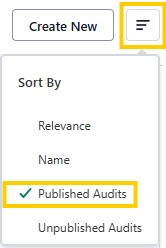
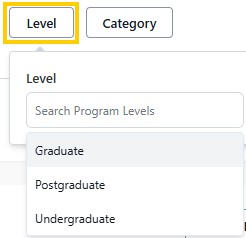
Level Filter: Available programs by Undergraduate and graduate
Select a program and the detailed program information included current and past audit versions, pathways and the "Try on a Student" feature will display.
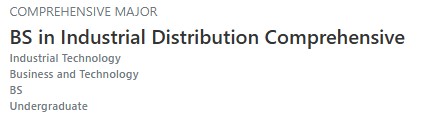
The progream heading will include information on the program, Type, title of program, department, school, degree, student level.
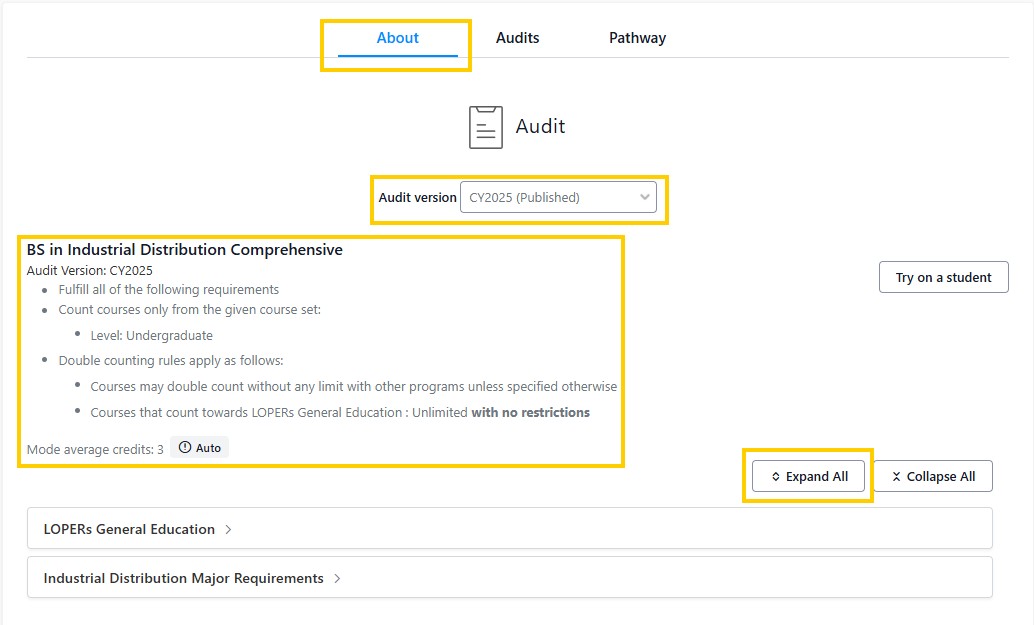
About tab: When viewing the program details, select the About tab to view available audit versions. To view previous audit versions click on the drop down box to see available options. Next, the program and it's requirements and constraints are provided. To view the specific LOPERs and Major requirements, click on either the Expand all button or the > icon on each heading.
This feature is beneficial for advisors when a student is exploring changing their program or catalog year. By selecting the program and catalog year, then entering in the student's NUID number, advisors will be able to compare the student’s current audit with the remaining requirements in the program selected.
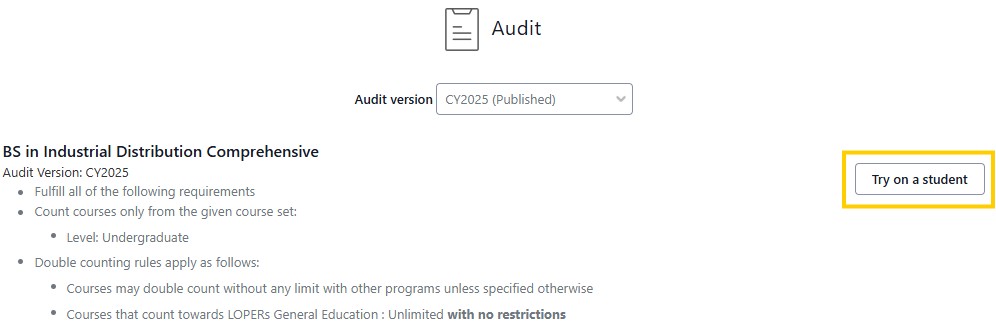
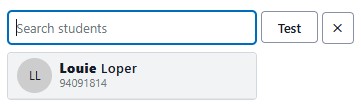
Click Try on a student button and enter in the student's name or NUID and click the Test button.
Next a full version of the student's degree audit will display. Advisors can then compare the selected program and catalog year with a student's current degree audit. This is a beneficial tool when analyzing remaining requirements before instructing a student to change programs or catalog year.
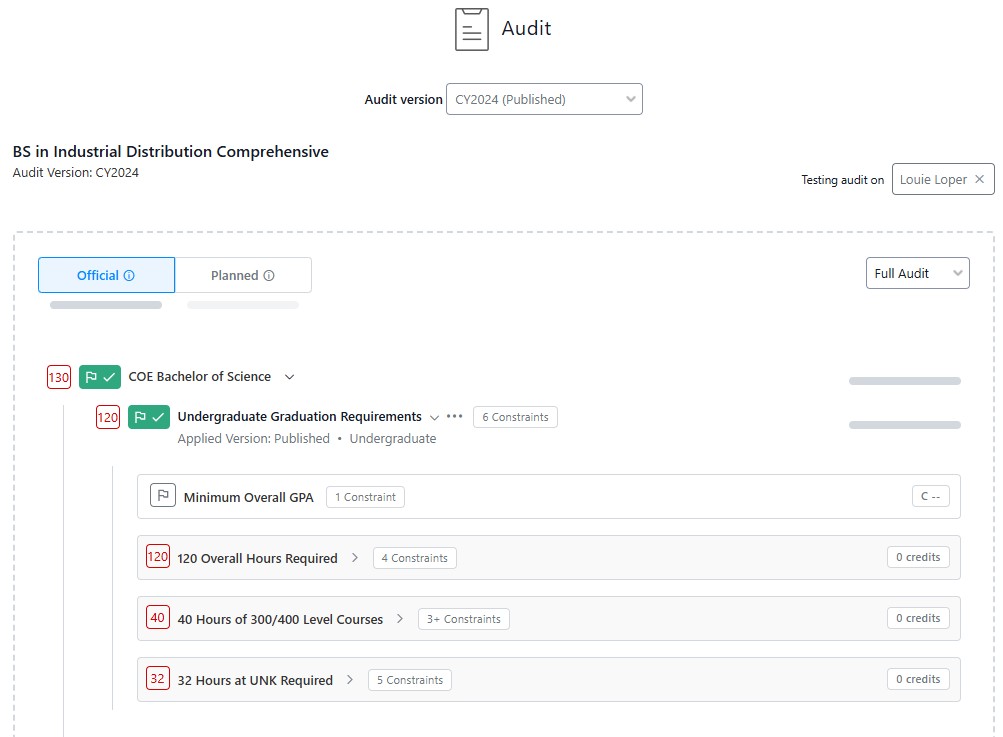
The audit tab allows advisors to view program requirements by catalog year. By clicking on the Audit version drop down box, there is the option to select past versions. The Try on a student feature is also available in this location. The "Applies To" links to a student list that can also be saved as a report, of the current students that are on that catalog year in the program. "Expand All" button will display the full program's degree audit including courses and requirements. 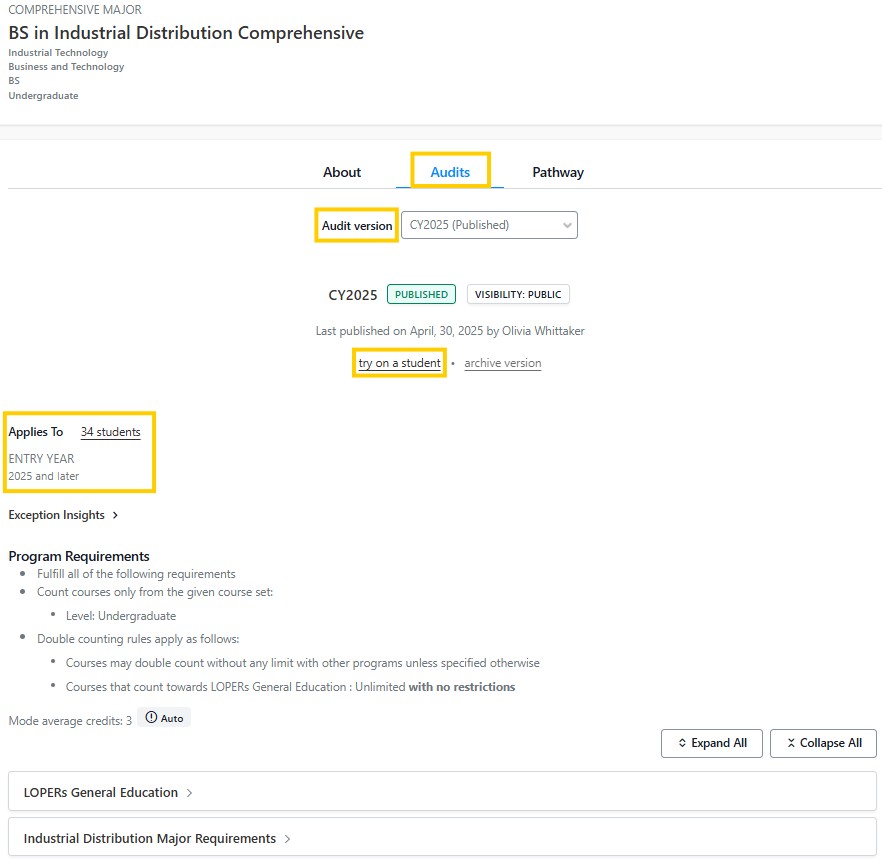
Pathways are example templates that provide details on how a program could be completed with courses laid out by term. The pathways created follow Four Year Plans outlined in UNK's course catalog. This can help students plan term by term, rather than just showing them the list of all classes needed.
Pathways can be accessed from either the left menu or the top menu. Pathways are organized by program and catalog year. They are helpful if a student's program has optional emphasis or concentrations, as each pathway is specific to each.