

To export your plan for printing/downloading, in your student profile navigate to the action buttons at the top of right. Click on the Printer icon to initiate the Print Audit Report.

This will open a menu that lets you choose the elements to export into the PDF of your plan. Options to include Format: standard, compact or expanded views. Audit version, official or Planned, Options to Include grades, exceptions, hidden courses. Finally a verification on programs to include. 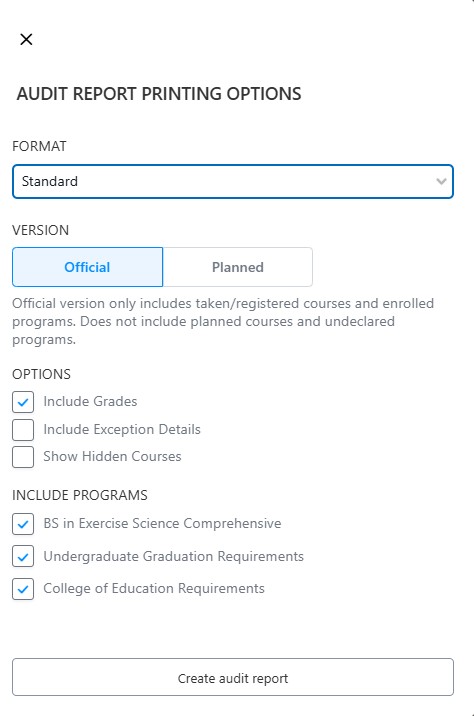 When you have selected the elements in which you would like included in your download, click the Create audit report to download the PDF.